You took a photo on your iPhone, sent it to your laptop, and it won't open. Or a website rejects it. The culprit is almost always the HEIC format. Here is what it is and the fastest ways to turn it into a normal JPG.
What is a HEIC file?
HEIC (High Efficiency Image Container) is the format iPhones have used by default since iOS 11. It stores a photo at roughly half the size of a JPG with the same quality, which saves a lot of storage. The downside is compatibility: many Windows PCs, older Android phones, web forms and photo services still expect JPG.
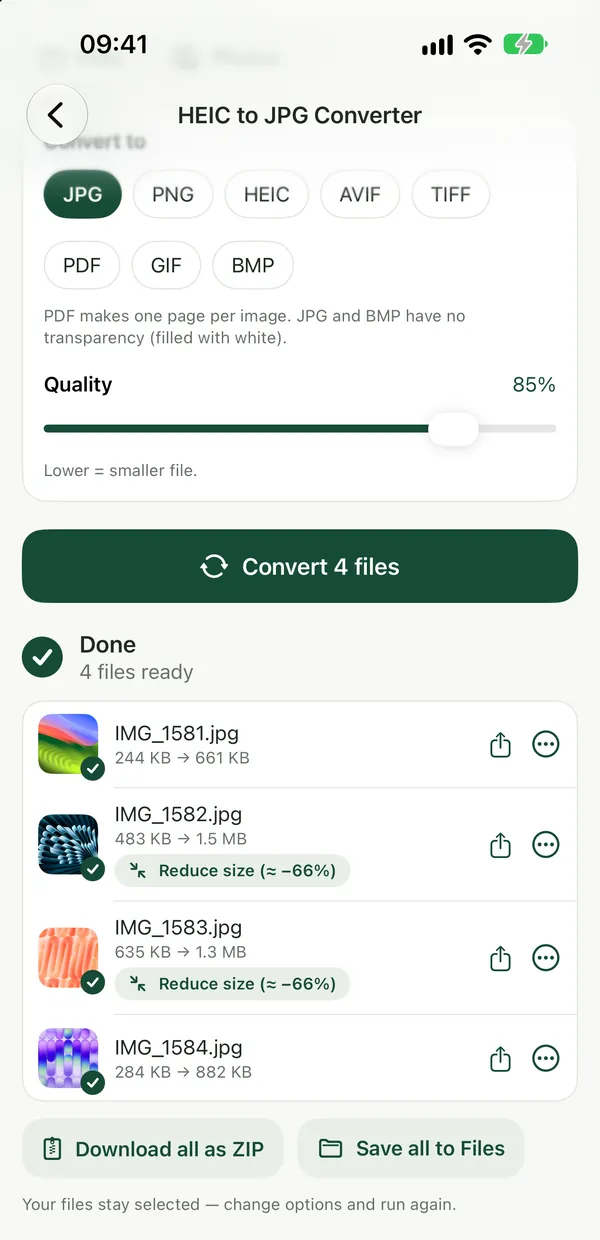
The quickest way: convert in your browser
HEIC to JPG ConverterConvert iPhone HEIC photos to JPG right in your browser. Files never leave your device.Open tool- Open the HEIC to JPG converter.
- Drop one or many
.heicfiles onto the page (from Files, AirDrop, a USB cable or a download folder). - Pick the quality. 90 is visually identical to the original for almost every photo.
- Download each JPG, or all of them as one ZIP.
The conversion runs inside your browser, so your photos are never uploaded to a server. That matters for personal pictures, ID scans and screenshots of documents.
Convert HEIC to JPG on Windows
Windows 10 and 11 can only open HEIC files after you install Microsoft's HEIF Image Extensions (and sometimes the HEVC Video Extensions) from the Microsoft Store. Even then, many apps still can't save them as JPG. The browser converter above works in Edge or Chrome without installing anything, and it handles dozens of files at once.
Convert HEIC to JPG on a Mac
On a Mac you can open the photo in Preview, choose File → Export, and pick JPEG. That works well for a few pictures. For a whole folder, dropping them all into the browser converter and downloading a ZIP is faster.
Convert HEIC to JPG on Android
Recent Android versions can display HEIC, but sharing apps and websites often can't read it. Open the converter in Chrome on your phone, tap the drop area to pick photos from your gallery, and save the JPGs back to your phone.
Make your iPhone take JPG photos instead
If you would rather avoid HEIC entirely, open Settings → Camera → Formats and choose Most Compatible. New photos will be saved as JPG (and videos as H.264). Existing photos stay HEIC, so you will still need a converter for those. Also note that when you AirDrop or email photos, iOS often converts them to JPG automatically, but copying via cable or iCloud for Windows keeps the original HEIC.
JPG or PNG?
- JPG is best for photos: small files, opens everywhere.
- PNG is lossless and keeps sharp edges, useful for screenshots or if you plan to edit the image heavily. Files are much larger. Use HEIC to PNG for that.
- Need a document instead? HEIC to PDF puts your photos into one PDF, one per page, handy for receipts and forms.
Frequently asked questions
Does converting HEIC to JPG lose quality?
JPG is a lossy format, so a tiny amount of detail is discarded. At quality 90 or higher the difference is not visible in normal viewing. The original HEIC on your phone is untouched.
Is it safe to convert private photos online?
With most online converters your photos are uploaded to someone else's server. Filevale converts them on your own device, so they never leave it.
Can I convert Live Photos?
A Live Photo is a HEIC still plus a short video. The converter turns the still image into a JPG. To keep the motion, convert the video part with MOV to MP4 or make a GIF.