You received a PDF and need to change a few sentences, reuse the text in a new document, or fill it in. Converting it to Word (.docx) is the easiest way. Here's how, and what to expect.
Convert PDF to Word
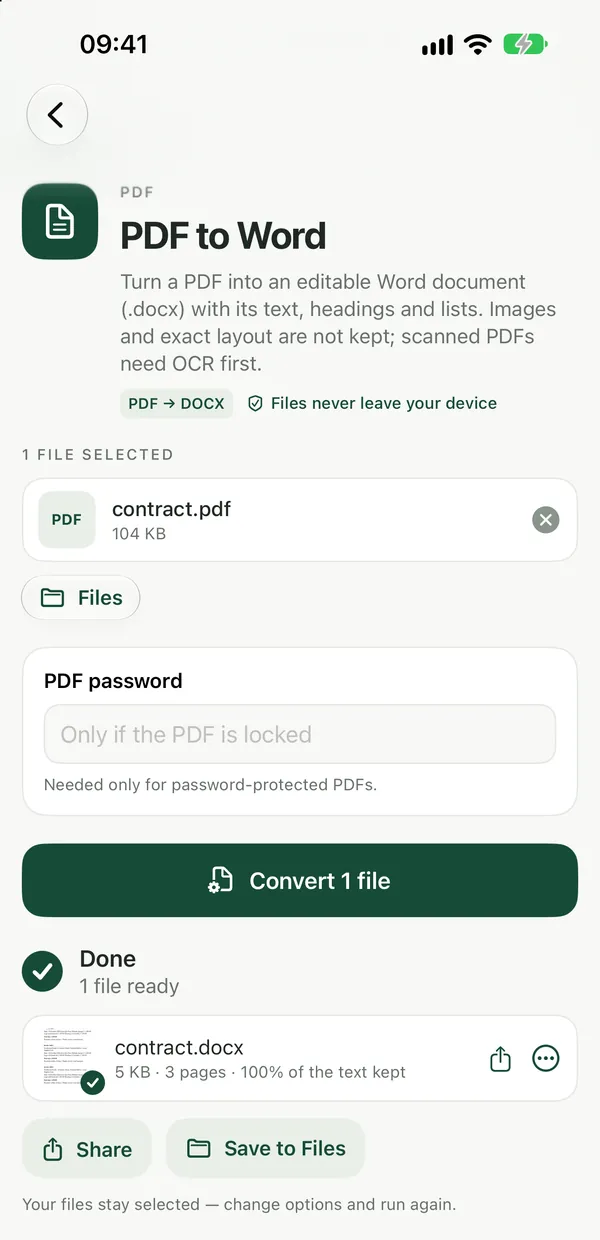
PDF to WordTurn a PDF into an editable Word document (.docx) with its text, headings and lists. Images and exact layout are not kept; scanned PDFs need OCR first.Open tool- Open PDF to Word and drop your PDF.
- Run the conversion. The text, headings and lists are rebuilt as a Word document.
- Download the
.docxand open it in Microsoft Word, Google Docs, Pages or LibreOffice.
What converts well, and what doesn't
PDF is a page-layout format, not an editing format, so every converter has to guess the structure. Filevale focuses on getting the text right:
- ✅ Paragraphs, headings and bulleted or numbered lists.
- ✅ Reports, letters, contracts and articles exported from Word or Google Docs.
- ⚠️ Images and the exact visual layout are not kept. Expect to restyle complex designs.
- ❌ Scanned PDFs (photos of paper) contain no real text. They need OCR (text recognition) first.
Other ways to get the text out
- PDF to Text gives you plain text, perfect for pasting into an email or a chat with an AI assistant.
- PDF to Markdown keeps headings and lists in a clean format for notes apps and websites.
Turn it back into a PDF
When you're done editing, convert the document back with Word to PDF so it looks the same on every device.
Frequently asked questions
Is my document uploaded?
No. Filevale reads the PDF and builds the Word file in your browser.
Why does my converted document look different?
Word and PDF describe layout differently. Text is preserved; columns, text boxes and images may need manual adjustment.
Can I convert a PDF with a password?
If you know the password, remove it first with Unlock PDF, then convert.