Reading out a 20-character WiFi password to every guest gets old fast. A WiFi QR code lets anyone join your network by pointing their phone camera at it. Perfect for homes, Airbnbs, cafés, offices and events.
Create the WiFi QR code
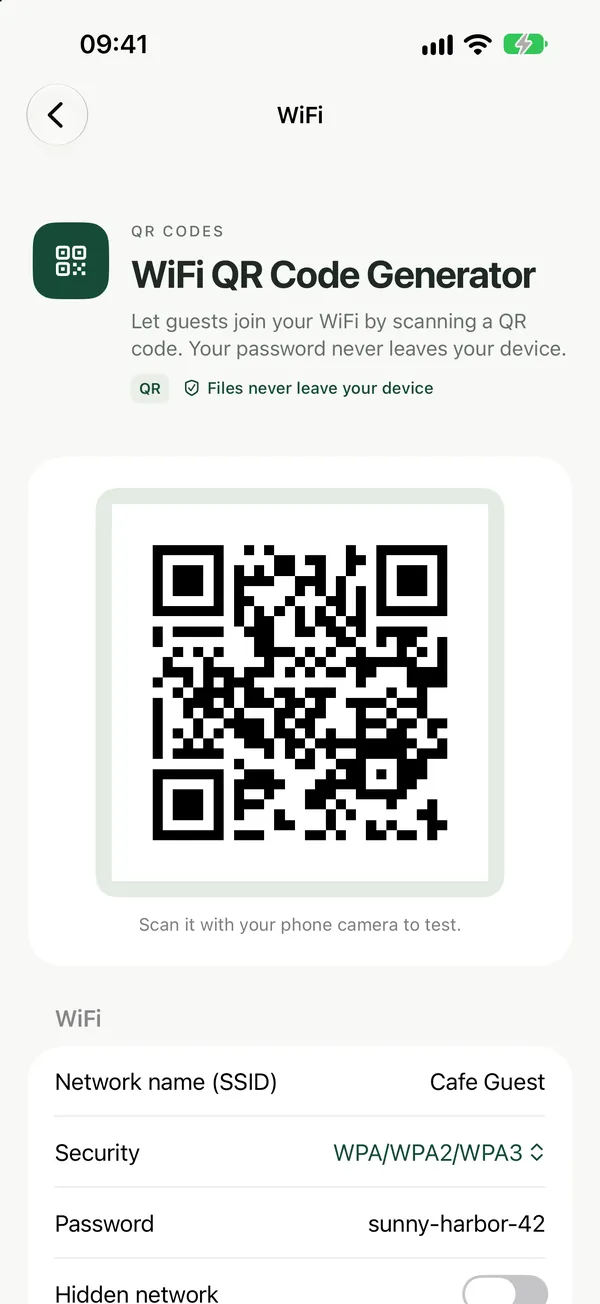
WiFi QR Code GeneratorLet guests join your WiFi by scanning a QR code. Your password never leaves your device.Open tool- Open WiFi QR Code.
- Enter the network name (SSID) exactly as it appears, including capital letters and spaces.
- Enter the password and choose the security type: WPA covers WPA, WPA2 and WPA3, which nearly all routers use; WEP only for very old ones, or none for an open network.
- Optionally pick colors or a larger size for printing, then download the PNG (or SVG for print shops).
The code is generated in your browser. Your WiFi password is not sent to any server.
How guests use it
- iPhone: open the Camera app, point it at the code, tap the Join network banner.
- Android: open the camera or Google Lens (on some phones it's in the quick settings WiFi panel) and tap Connect.
Tips for printing
- Print it at least 3 × 3 cm (about 1.2 inches); bigger if people scan from a distance.
- Keep strong contrast: dark code on a light background.
- Add a line of text such as "Scan to join the WiFi" so people know what it is.
- If you change the WiFi password, make a new code; the old one stops working.
Other useful QR codes
- Contact (vCard) QR Code for business cards.
- QR Code with Logo for branded signs and menus.
- QR Code Generator for links, text and more.
Frequently asked questions
Do these QR codes expire?
No. They are static codes: the WiFi details are inside the image itself, so they don't depend on our servers or on an internet connection to be read.
Is it safe to put my WiFi password in a QR code?
Anyone who can scan the code can join, the same as anyone you tell the password to. Use a guest network for public places.
Which security type should I pick?
WPA, unless your router settings say WEP (very old) or the network has no password.