To add a signature to a PDF, open the file in a signing tool, create your signature by drawing, typing or uploading it, place it on the page and download the signed copy. If the document specifically asks for a certificate-based digital signature, you need a signing service or app that uses a digital ID, because a picture of your signature is a different thing. This guide explains the difference, then shows both routes.
Electronic signature or digital signature?
People use the two terms for the same thing, but they are not the same:
- An electronic signature is your signature shown on the page: drawn, typed or pasted in as an image. It is accepted for many everyday agreements, such as rental forms, permission slips and freelance contracts.
- A certificate-based digital signature attaches a digital ID to the file. It proves who signed and shows whether the document was changed after signing. Some contracts, official forms and regulated industries require this, often called a qualified or certified signature.
If the request just says "sign and send back", an electronic signature is usually what is expected. If it mentions a certificate, a digital ID or a qualified signature, ask the sender which service they accept.
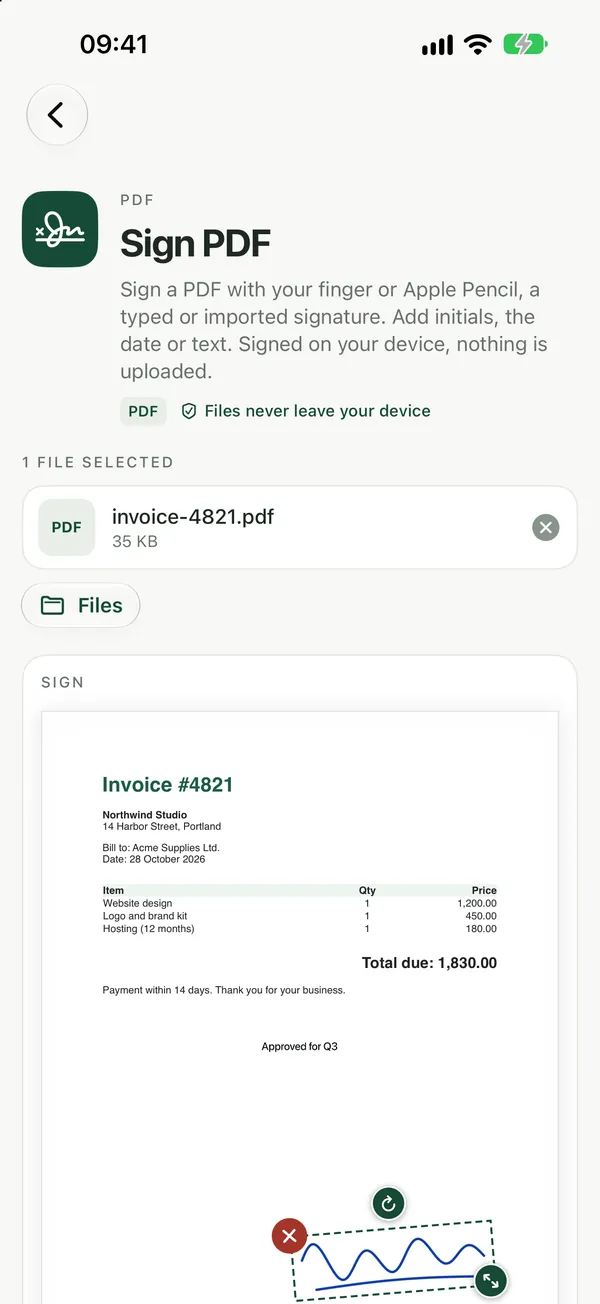
Add your signature in the browser
Sign PDFAdd your signature to a PDF: draw it, type it or upload a picture, place and resize it on any page, add a date, then download the signed PDF.Open tool- Open Sign PDF and choose your PDF: drop it on the page or click to browse. You can add several at once.
- Click Sign, then draw, type or upload a picture of your signature.
- Place it on any page, resize it to fit the line, and add a date if the document needs one.
- Download the signed PDF.
Everything happens on your device; the file is not uploaded. Signatures you save stay only in this browser on this device, and you can delete them from the signature list at any time. Sign PDF is free with no watermarks, and no sign-up is needed to download.
Sign PDF adds a simple electronic signature, not a certificate-based digital signature. For documents that require a qualified or certified signature, use a dedicated signing service.
When you need a certificate-based signature
Filevale does not create certificate-based digital signatures. If your document requires one, the organisation asking for it usually tells you which signing service or digital ID to use, for example one issued by your employer, bank or government. Apps that support digital IDs, such as Adobe Acrobat, let you sign with the certificate you have been given.
One thing to know: once a PDF carries a certificate-based signature, changing the file afterwards, even just compressing or re-saving it in another tool, can make the signature show as invalid. Do all other edits first and sign last.
Lock form fields before you sign
Flatten PDFTurn filled form fields into permanent page content.Open toolIf the PDF has boxes you type into, fill them in your PDF viewer and save. Flatten PDF then locks the filled form fields into the page so the answers can't be changed. Add your signature after that. The signature from Sign PDF is also flattened into the page content, so it can't simply be selected and deleted like an annotation. Keep the unsigned original in case you need to fix a mistake.
Protect the signed copy before sending
Signed contracts often contain addresses, account numbers and ID details. After downloading, you can lock the file with a password using Password Protect PDF, and send the password separately from the email with the attachment. The guide on making a password protected PDF covers this in more detail.
If an office insists on a pen signature, print and sign the page, then turn it back into a PDF with Scan to PDF. For more on drawing, typing or uploading a signature and the built-in Mac and iPhone options, see how to add a signature to a PDF.
Frequently asked questions
Is a signature added with Sign PDF legally binding?
It is a simple electronic signature, an image of your signature placed on the page, which is accepted for many everyday agreements. It is not a certificate-based digital signature, so documents that require a qualified or certified signature need a dedicated service.
Can I remove or change the signature later?
Not easily. The signature is flattened into the page content, so it can't be selected and deleted like an annotation. Keep your unsigned original, and if you need to change something, sign that copy again.
Is it safe to sign confidential documents this way?
Sign PDF runs entirely in your browser, so the PDF never leaves your device and is not uploaded to a server. Saved signatures are stored only in that browser on that device, and you can delete them at any time.