To put all your images in one PDF, add them to Image to PDF, drag them into the order you want and create the file: each image becomes one page of a single PDF. It accepts JPG, PNG, WebP, HEIC, GIF and BMP together, so a folder of iPhone photos, screenshots and downloaded pictures can go into the same document without converting anything first.
Combine all images into one PDF in your browser
Image to PDFTurn photos (JPG, PNG, WebP, HEIC) into a single PDF.Open tool- Open Image to PDF and choose your JPG, PNG, WEBP, HEIC, GIF or BMP files. You can add several at once.
- Put them in the order you want, and remove any you don't need with ✕.
- Click Create PDF from N files. Everything happens on your device.
- Download the PDF. If the layout isn't right, change the options and run again on the same files.
The images are processed in your browser and are not uploaded, which matters when the pictures are ID cards, receipts or signed forms. The tool is free with no watermarks, and no sign-up is needed to download.
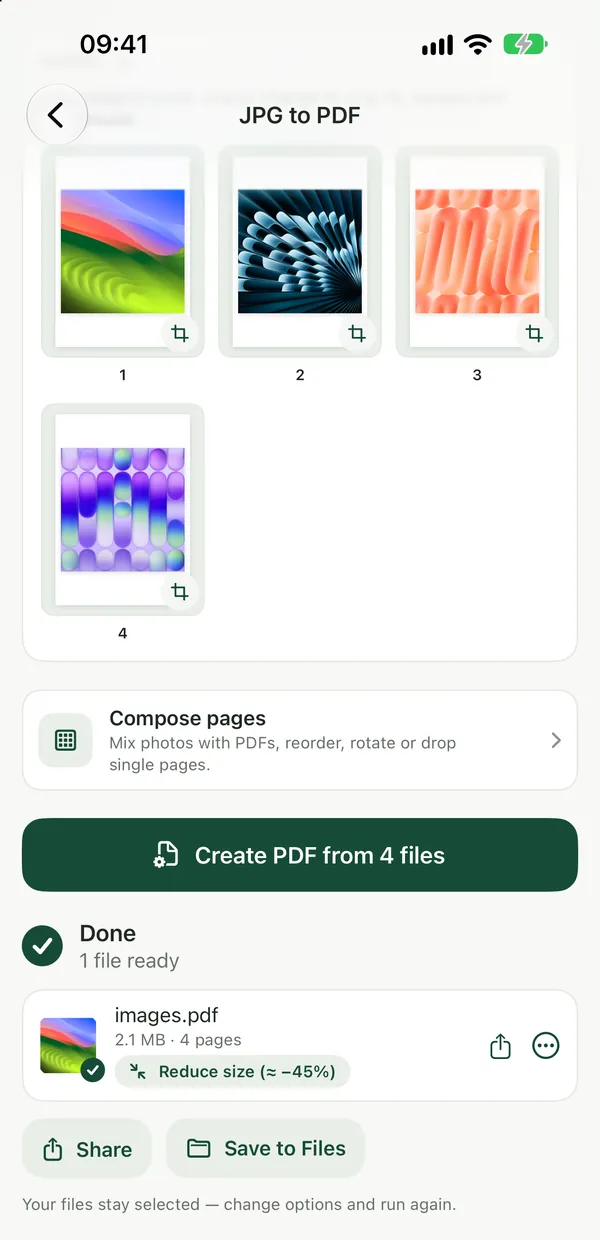
Choose the page size and how each image fits
By default, each image is placed on an A4 page, fitted inside a small margin on a white background, with the orientation chosen automatically. After you choose your files, a strip of page thumbnails appears under the file list. Tap any page to open the page editor:
- Page size: A4, Letter, Fit to image, Square or Custom (mm).
- Orientation: Auto, Portrait or Landscape.
- Placement: Fit, Fill, Original size or Stretch.
- Margin: None, Small or Medium, plus a background color.
- Zoom and drag to frame the image on the page.
When one page looks right, click Apply to all pages so every image gets the same settings. For a photo album, Fit to image with no margin keeps each page the shape of its picture. For documents you plan to print, A4 or Letter with Fit keeps every page the same size.
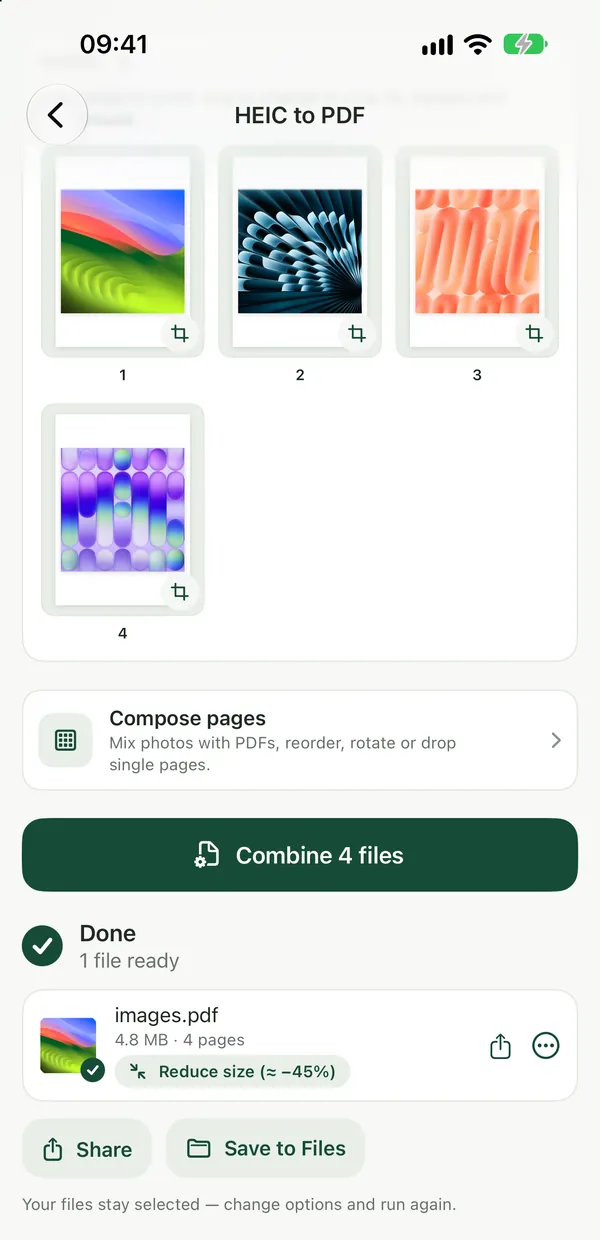
If all your images are one format
HEIC to PDFTurn HEIC images into a single PDF, right in your browser.Open toolFilevale also has single-format versions that work the same way, with the same page editor: HEIC to PDF for iPhone photos, JPG to PDF, PNG to PDF, WebP to PDF and BMP to PDF. For TIFF scans and faxes, use TIFF to PDF. If you only have JPGs, the guide on converting multiple JPG files into one PDF walks through that case.
The built-in option on Mac and Windows
On a Mac, select the images in Finder, right-click and choose Quick Actions → Create PDF. The pages follow the order of the selection, and you have less control over page size and margins.
On Windows, select the images in File Explorer, right-click and choose Print, then pick Microsoft Print to PDF as the printer. The print layout options decide how each picture is placed on the page.
These work well for a quick job. The browser tool is handier on a phone, or when you want to control the order, page size and margins page by page.
When you already have some PDFs too
If part of what you want to combine is already a PDF, create the PDF from your images first, then join everything with Merge PDF. To change the page order afterwards, use Organize PDF Pages. See how to merge PDF files into one for the details.
Frequently asked questions
How many images can I put in one PDF?
Image to PDF accepts several files at once and puts each image on its own page, in the order you set. A large number of high-resolution photos makes a large PDF, so if the file is too big to send, run it through Compress PDF afterwards.
Can I put two or four images on one page?
Image to PDF places one image per page. If you want to print several pages on one sheet, create the PDF first and then use N-up PDF, which prints 2 or 4 PDF pages on one sheet.
Does it work on iPhone and Android?
Yes. It works in any modern browser, including Safari and Chrome, on iPhone, iPad, Android, Mac, Windows and Chromebook, and there is nothing to install. On an iPhone, HEIC photos can go straight in without converting them to JPG first.