To add a signature to a PDF, open it in a signing tool, draw, type or upload your signature, place it on the right page and save a new copy. You don't need to print, sign and scan the document: Sign PDF does it in your browser on a phone or computer, and Mac and iPhone also have a built-in option.
Sign a PDF in your browser
Sign PDFAdd your signature to a PDF: draw it, type it or upload a picture, place and resize it on any page, add a date, then download the signed PDF.Open tool- Open Sign PDF and choose your PDF: drop it on the page or click to browse.
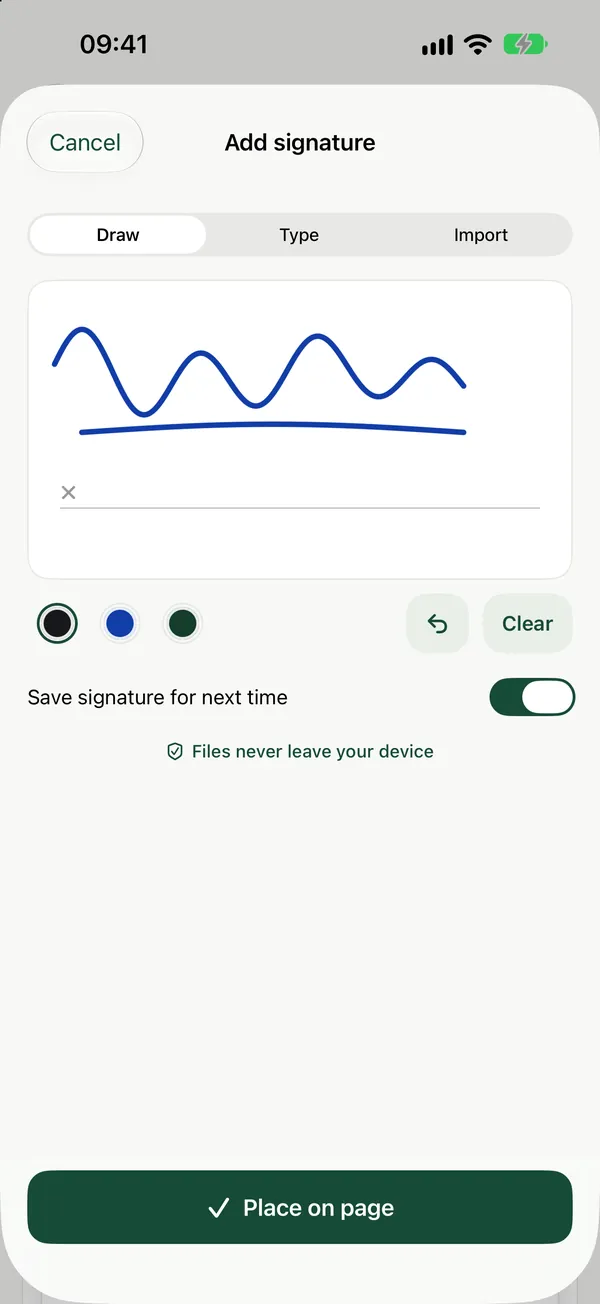
- Click Sign and create your signature: draw it, type it, or upload a picture of it.
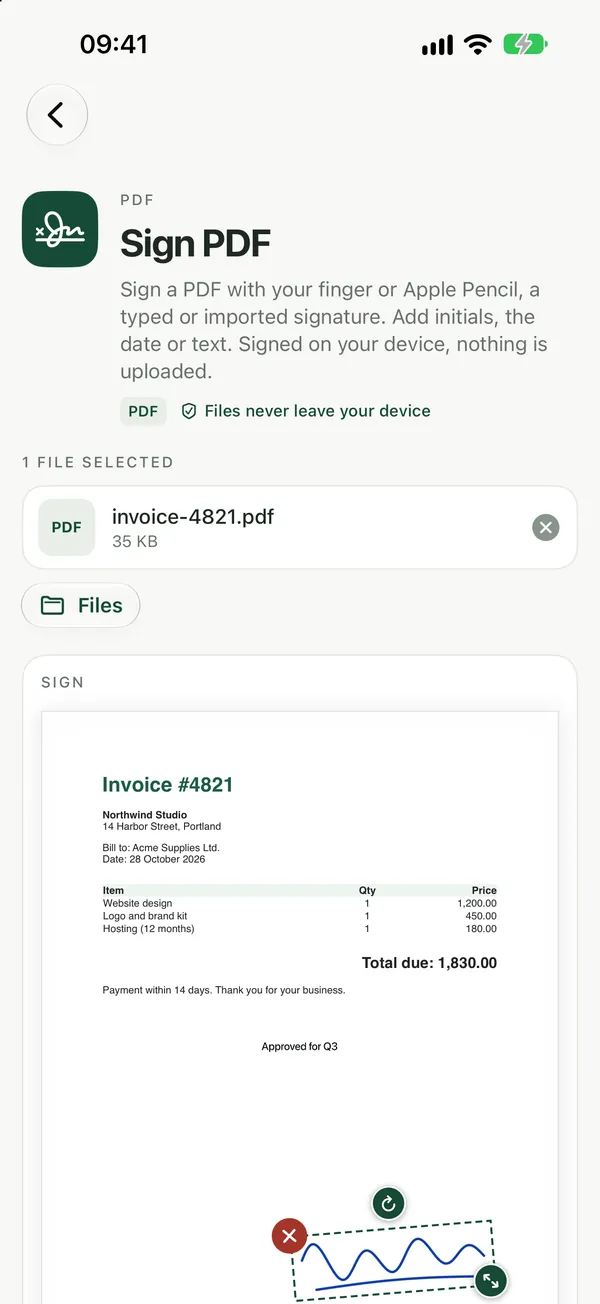
- Place the signature on any page, resize it so it fits the line, and add a date if the document asks for one.
- Download the signed PDF.
The file is processed in your browser and is not uploaded, which matters for contracts, leases and HR forms. Signatures you save are kept only in this browser on this device, and you can delete them from the signature list at any time. Sign PDF is free with no watermarks, and no sign-up is needed to download.
Draw, type or upload: which to choose
- Draw with a finger on a phone or tablet, or with a trackpad or mouse. A finger on a touchscreen usually looks most like your pen signature.
- Type your name when a neat, readable signature is enough, for example on an internal form.
- Upload a picture if you already have a clean photo or scan of your signature on white paper. Sign once on paper, photograph it in good light, and reuse it.
What kind of signature this is
Sign PDF adds a simple electronic signature: an image of your signature placed on the page. That is accepted for many everyday agreements, such as rental forms, permission slips and freelance contracts. It is not a certificate-based digital signature, so documents that require a qualified or certified signature need a dedicated service. If you are not sure which one you need, ask whoever sent you the document.
The signature is flattened into the page content, so it can't simply be selected and deleted like an annotation. Keep the unsigned original in case you need to sign again or fix a mistake.
Signing a form with fill-in fields
Many PDFs have boxes you type into. Fill those in first in your PDF viewer and save. If you want the filled answers locked into the page so they can't be changed, run the file through Flatten PDF, then add your signature with Sign PDF.
Built-in options on Mac and iPhone
On a Mac, open the PDF in Preview, show the Markup toolbar and use the signature button. You can create a signature with the trackpad or by holding a signed sheet of paper up to the camera.
On iPhone and iPad, open the PDF in the Files app, tap the Markup button and choose Add Signature. Both options work well for a quick signature on Apple devices. On Windows, Android or a shared computer, the browser tool above works the same way everywhere.
If you still have to sign on paper
Some offices insist on a wet signature. Print the page, sign it, then turn it back into a PDF with Scan to PDF, which uses your phone's camera. The guide on scanning documents into a PDF with your phone covers the details. If the signed file is too large to email, see how to compress a PDF for email.
Frequently asked questions
Is a signature added this way legally binding?
It is a simple electronic signature, which is accepted for many everyday agreements. Documents that require a qualified or certificate-based digital signature need a dedicated signing service, so check with the person or organisation asking for it.
Can I sign several pages or several PDFs?
You can place and resize your signature on any page of the document, and Sign PDF lets you add several files at once. Before you download, scroll through the result and check that the signature sits where the document asks for it.
Can I protect the signed PDF before sending it?
Yes. After downloading the signed copy, you can lock it with a password using Password Protect PDF. Send the password to the recipient separately, not in the same email as the file.