To compress a video on a Mac, open it in QuickTime Player and choose File > Export As > 1080p or 720p: the exported file is usually much smaller than the original. That's the quickest built-in fix. When you need the file under a specific size, say for an email attachment or a Discord upload, a compressor that lets you aim for a size works better.
Below are the built-in options, what each one is good at, and a browser workflow for hitting a size limit.
Why Mac videos are so big
Screen recordings and iPhone clips are recorded at high bitrates so they look perfect while editing. A one-minute 4K iPhone video can easily pass a few hundred megabytes. Most of that detail is invisible on a phone screen or in a chat window, so reducing resolution and bitrate shrinks the file a lot while it still looks sharp where it'll be watched.
Method 1: QuickTime Player
- Open the video in QuickTime Player.
- Choose File > Export As and pick 1080p, 720p or 480p.
- Save the new file.
Choosing a resolution lower than the original is what saves space. Exporting a 1080p video as 1080p mainly helps with screen recordings, which QuickTime re-encodes more efficiently. You can't pick a target file size.
Method 2: iMovie
Add the clip to a project, then choose File > Share > File. Set Resolution to 720p or 1080p and Quality to Medium or Low. iMovie shows an estimated file size before you export, which makes it easier to stay under a limit. It's heavier than QuickTime but useful when you also want to trim the clip.
Method 3: Finder's encode action
Right-click the video in Finder and choose Encode Selected Video Files. Pick a preset such as 1080p or 720p and choose HEVC for smaller files or H.264 for maximum compatibility. It handles several files at once and keeps the originals.
HandBrake, a free open-source app, gives you full control over codecs and bitrates if you're comfortable with lots of settings.
Method 4: Compress a video in your browser
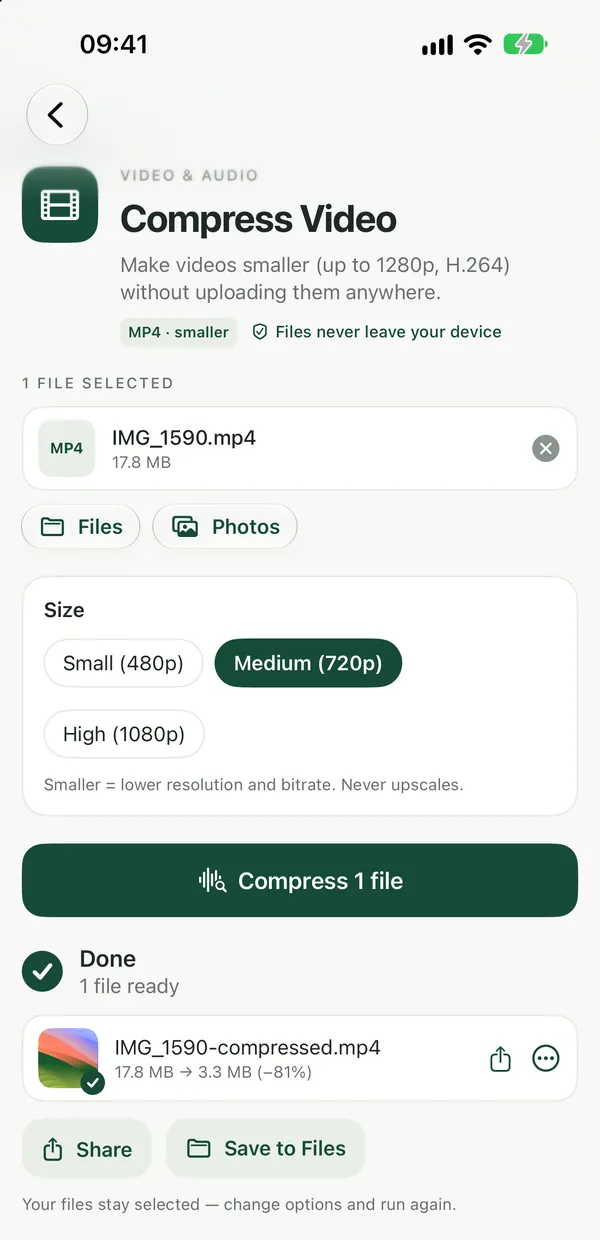
Compress VideoMake videos smaller (up to 1280p, H.264) without uploading them anywhere.Open tool- Open Compress Video in Safari or Chrome.
- Add the video. MOV files from an iPhone or a screen recording work directly.
- Choose a smaller size or quality, up to 1280p, and start the compression.
- Download the H.264 MP4, which plays almost everywhere.
Nothing is uploaded: the video is re-encoded on your Mac inside the browser tab, so private recordings stay private. If the problem is format rather than size, for example a website that rejects MOV, MOV to MP4 converts it.
A worked example: a screen recording for Discord
You recorded a three-minute bug report with Command-Shift-5 and it came out as a 400 MB MOV. Discord's free upload limit is far below that. Export at 720p in QuickTime and check the size in Finder; if it's still too large, run that file through Compress Video at a lower quality. Text in a screen recording stays readable at 720p as long as you don't go lower, so if it still won't fit, trim the clip rather than dropping to 480p.
Choosing settings
- For email: most providers cap attachments around 20 to 25 MB. Aim for 720p and keep clips short, or share a link instead.
- For chat apps: 720p H.264 MP4 plays inline almost everywhere.
- For keeping: compress a copy, never the only original. Re-encoding always discards some detail.
For Windows, iPhone and Android steps and more on bitrate, see our guide to reducing video file size.
Frequently asked questions
How do I make a video smaller on a Mac for free?
Open it in QuickTime Player and use File, Export As with a lower resolution such as 720p. Finder's Encode Selected Video Files action and iMovie's share settings also work. For a specific size target, a browser tool like Filevale's Compress Video shrinks the file without installing anything or uploading it.
Does compressing a video reduce its quality?
Yes, some detail is always lost, but usually not where you'll notice. Dropping from 4K to 1080p or 720p for a phone or chat window looks nearly identical. Quality suffers when you push the bitrate very low or downscale text-heavy screen recordings below 720p.
Should I use HEVC or H.264?
HEVC makes smaller files at the same quality and plays on recent Apple devices. H.264 files are a little larger but play on almost every phone, browser, and Windows PC. If you're sending the video to people with unknown devices, H.264 MP4 is the safer choice.
Why is my exported video still too large?
Length matters as much as resolution: a long clip stays big even at 720p. Trim the parts you don't need, lower the quality setting, or remove the audio track if it isn't needed. For very long videos, sharing a cloud link is often more practical than an attachment.