To convert a comma separated values file to Excel, open it in a CSV to Excel converter and save the result as an .xlsx workbook, or import it into Excel with the right column settings. The browser method below takes a few clicks on any device and keeps values like 007 or long account numbers from being changed along the way.
What a CSV file actually is
A CSV (comma-separated values) file is a plain-text table: each line is a row, and commas separate the columns. Every spreadsheet, database and programming language can read it. What it can't hold is anything a workbook has: formatting, column widths, formulas or several sheets. Converting to XLSX gives you a proper Excel file you can format, share and calculate with.
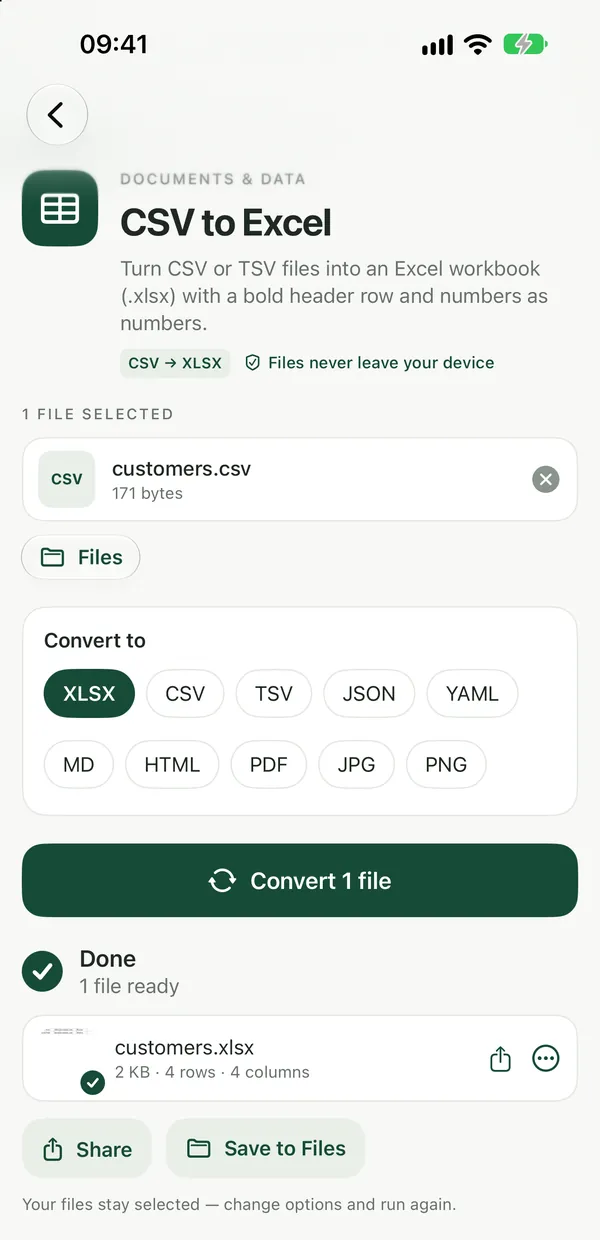
Convert CSV to Excel in your browser
CSV to ExcelConvert CSV or TSV files to an Excel workbook (.xlsx) with numbers kept as numbers and leading zeros kept as text, right in your browser.Open tool- Open CSV to Excel and drop your
.csvfile on the page, or click to browse. You can add several files at once, and TSV (tab-separated) files work too. - Click Convert. Everything happens on your device.
- Download the XLSX file. If you converted several files, you can download them together as one ZIP.
Plain numbers become real numbers you can sum and chart. Values that would lose digits as numbers, such as 007, phone numbers or long IDs, are kept as text, so nothing is silently changed. The tool can also save the same data as JSON, Markdown or YAML if you need one of those instead.
The file is processed in your browser and is not uploaded, which matters for customer lists, payroll exports and bank statements. The tool is free with no watermarks, and no sign-up is needed to download.
Why double-clicking a CSV in Excel can go wrong
Excel opens CSV files directly, but it guesses the type of every column as it does. That guess is where data gets damaged:
- Leading zeros disappear, so ZIP codes and product codes like
00451become451. - Long numbers such as card or tracking numbers can switch to scientific notation and lose their last digits.
- Text that looks like a date, such as
3-4or some product codes, can turn into a date.
If you save over the original CSV after that, the changes are permanent. Converting to XLSX first, or importing carefully, avoids the problem.
Import a CSV inside Excel, Google Sheets or Numbers
If you prefer to stay in your spreadsheet app, each one has an import option:
- Excel on Windows or Mac: use Data → From Text/CSV (or Get Data in some versions). In the preview you can set a column's type to Text before loading, which protects leading zeros. Then save with File → Save As and choose Excel Workbook (
.xlsx). - Google Sheets: use File → Import, upload the CSV, and turn off automatic conversion of numbers, dates and formulas if your data has codes or IDs. Then choose File → Download → Microsoft Excel (.xlsx).
- Numbers on a Mac: open the CSV, then choose File → Export To → Excel.
Going the other way, or to another format
Many systems only accept CSV for imports, so you may need to turn a workbook back into one. Excel to CSV exports every sheet of an .xlsx or .xls workbook as its own file, with values rather than formulas. To print or share the data as a document, CSV to PDF turns CSV data into a clean PDF table. If your data comes as JSON from an API, JSON to Excel makes one row per object, and the guide on converting JSON to CSV or Excel covers that in more detail. All data converters are on the document tools page.
Frequently asked questions
Will my numbers still work in formulas after converting?
Yes. Plain numbers in the CSV become real numbers in the XLSX file, so SUM, sorting and charts work right away. Only values that would lose digits as numbers, such as IDs with leading zeros or very long numbers, are kept as text.
Can I convert a CSV to Excel on my iPhone or Android phone?
Yes. CSV to Excel works in any modern browser on iPhone, iPad, Android, Mac, Windows and Chromebook, with nothing to install. Pick the file from Files or your downloads, convert it, and save the .xlsx back to your phone.
What is the difference between CSV and TSV?
TSV works like CSV but separates columns with tabs instead of commas, which avoids problems when values themselves contain commas, such as addresses or prices written with a thousands separator. CSV to Excel accepts both.