To convert HEIC to PDF on iPhone, open the photo, tap Share, then Print, pinch outward on the preview and save the result to Files. That works for one or two photos. For a stack of receipts, pages of homework or a signed form shot in several pictures, a dedicated HEIC to PDF converter is faster and gives you one tidy file.
HEIC is the format your iPhone camera uses by default. It keeps photos small, but many forms, portals and email recipients ask for a PDF instead. Below are three ways to get there, from the built-in trick to the quickest route for many photos.
Method 1: the Print trick in Photos
This one is built into iOS and needs nothing else.
- Open the photo in Photos and tap Share.
- Scroll down and tap Print.
- On the print preview, spread two fingers outward on the page thumbnail. It opens as a PDF.
- Tap Share again and choose Save to Files.
You can select several photos before tapping Share, and they all land in one PDF. The catch: the page size follows the default printer paper, the photos are scaled to fit with margins you don't control, and the order is the order you selected them in. Fine for a quick send, awkward for anything that needs to look like a proper document.
Method 2: Create PDF in the Files app
If the photos are already in Files (or you save them there first), select them, tap the More button and choose Create PDF. On recent iOS versions this combines the selected images into one PDF in the same folder. It is quick, but you still have little say over page size, orientation or margins, and getting the order right means renaming files first.
Method 3: a free HEIC to PDF converter in your browser
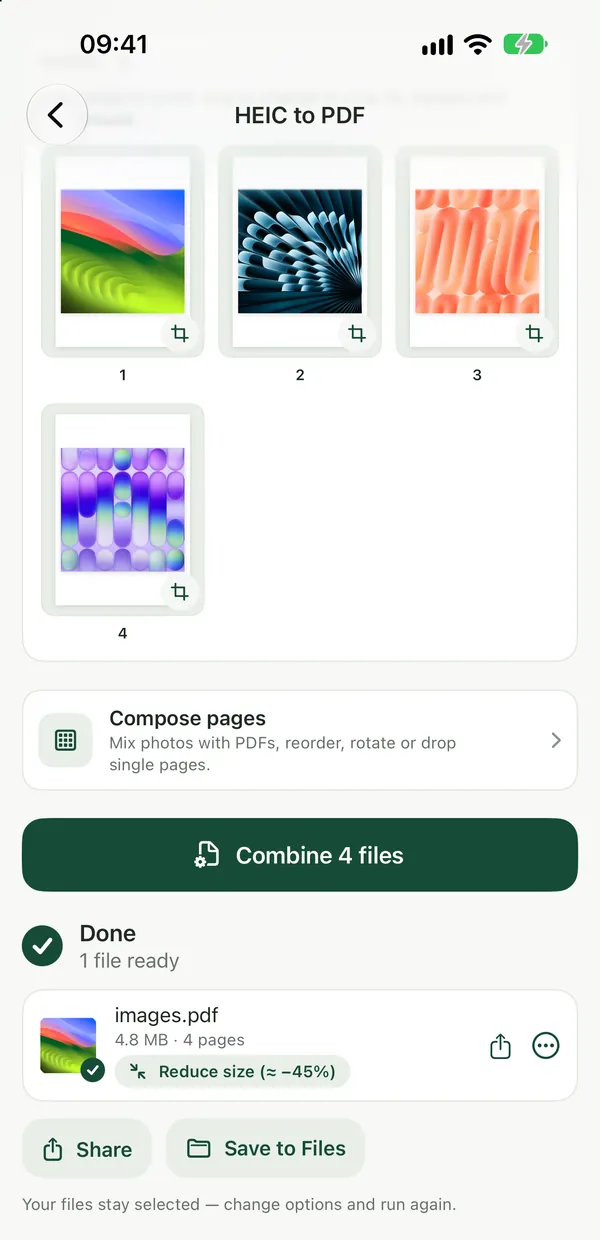
HEIC to PDFTurn HEIC images into a single PDF, right in your browser.Open tool- Open HEIC to PDF in Safari and tap the drop area.
- Choose Photo Library or Browse and pick all the photos you want. HEIC files are read directly; there is no need to convert them to JPG first.
- Check the page order (add the photos in the order you want the pages).
- Tap Convert and save the single PDF to Files or share it straight to Mail.
Everything runs in Safari on your phone, so your photos are never uploaded. That matters for ID cards, payslips and medical letters. If your set mixes HEIC with screenshots (PNG) or downloaded JPGs, use Image to PDF instead: it takes JPG, PNG, WebP and HEIC together.
Image to PDFTurn photos (JPG, PNG, WebP, HEIC) into a single PDF.Open toolIf you do this often, the free Filevale iPhone app does the same on-device conversion from the share sheet, and can also scan paper straight into a searchable PDF with OCR.
A worked example: a five-page form for a landlord
Say you filled in a rental application on paper and photographed each of the five pages. Selecting them in Photos and using Print gives you a PDF, but if you tapped page 3 first, it comes out first. In the browser tool you add all five in order 1 to 5 and get one PDF with the pages in exactly that order. Total time is about a minute, and the file is small enough to email.
If the photos are slightly skewed or show the table underneath, take them again with a document scanner instead; our guide to scanning documents into PDF with your phone shows how to get straight, cropped pages.
When the PDF is too big
HEIC photos are efficient, but a PDF of ten full-resolution pictures can still run to tens of megabytes. If a portal rejects it, run the result through Compress PDF, or see our guide to compressing a PDF for email for the right setting per use.
Frequently asked questions
Can I convert HEIC to PDF on iPhone without an app?
Yes. Use Share, then Print, then pinch outward on the preview to turn the photo into a PDF and save it to Files. A browser tool like Filevale's HEIC to PDF also needs no install, takes many photos at once and keeps them in the order you add them, without uploading anything.
How do I put several iPhone photos into one PDF?
Select all of them, then either use the Print trick, the Create PDF action in the Files app, or add them to an online HEIC to PDF converter. The converter is the easiest of the three for controlling page order, because the pages follow the order you add the photos in.
Are my photos uploaded when I convert them?
Not with Filevale. The HEIC files are decoded and the PDF is built inside Safari on your iPhone, so the images never leave the device. That makes it a reasonable choice for passports, bank letters and other documents you would rather not send to a server.
Why does my HEIC to PDF file look blurry?
Usually the original photo was blurry or taken at an angle, not the conversion. Retake the picture in good light, hold the phone parallel to the page, or use a document scanner that straightens the page. The PDF keeps the photo's own resolution, so a sharp photo gives a sharp page.