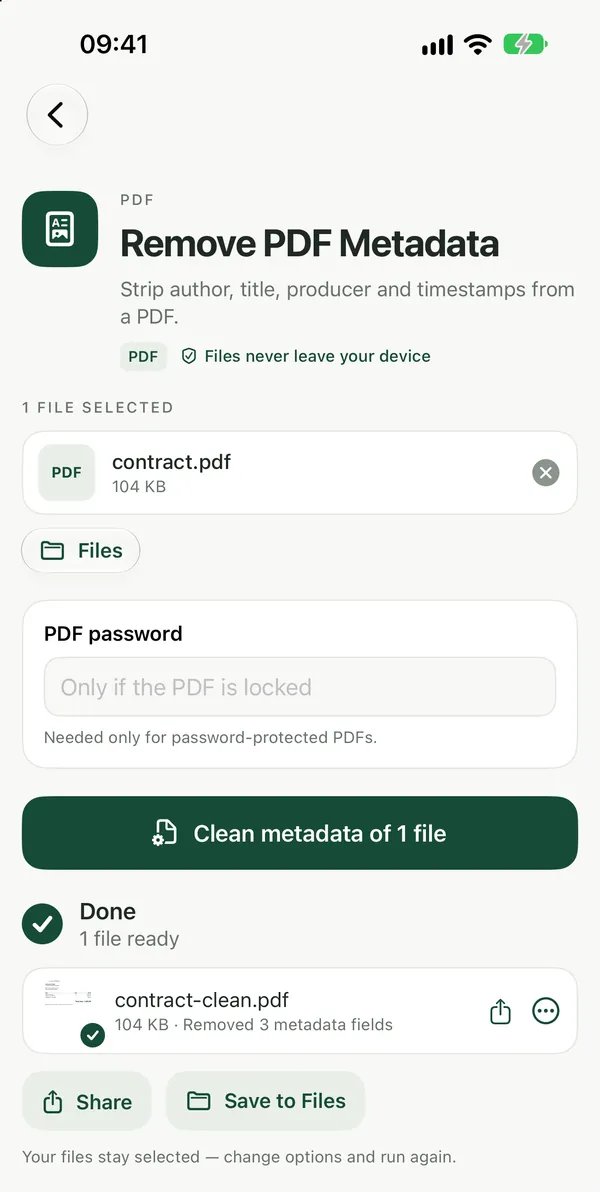
To delete metadata from a PDF, open Remove PDF Metadata, add the file and click Clean metadata of. The author, title, creator app and dates are cleared, and the pages look exactly the same. This guide also shows how to check what a PDF leaks before you send it, and what metadata removal does not cover.
What PDF metadata is
Most PDFs carry a small set of document properties that you don't see on the page: the author (often your account name on the computer that made the file), a title, the app that created or produced it, and creation and modification dates. Anyone who opens the file's properties in a PDF reader can read them. For a CV, a contract draft or a document sent anonymously, that can reveal more than you meant to.
Check what the PDF reveals first
PDF Privacy ScanSee what a PDF leaks before you share it: metadata, emails, phone, card and IBAN numbers. Results show right on the page.Open tool- Open PDF Privacy Scan and choose your PDF. You can add several at once.
- Click Scan. Everything happens on your device.
- Read the report on the page, copy it, or save it as a text file.
The scan looks at the metadata and the text of the PDF and lists what could identify you: metadata, email addresses, phone numbers, card numbers and IBAN numbers. Nothing in the file is changed, so it is a safe first step.
Delete the metadata
Remove PDF MetadataStrip author, title, producer and timestamps from a PDF.Open tool- Open Remove PDF Metadata and drop your PDF on the page, or click to browse. You can add several files at once.
- Click Clean metadata of. Everything happens on your device.
- Download the cleaned PDF. You can change the options and run it again on the same file if needed.
The author, title, creator and dates are cleared; the visible content is unchanged. The file is processed in your browser and is not uploaded, which matters for exactly the kind of documents people clean before sharing. The tool is free with no watermarks, and no sign-up is needed to download. Run the privacy scan again on the cleaned file to confirm the metadata is gone.
What removing metadata does not cover
Metadata is only the hidden properties. Anything printed on the page stays where it is:
- Names, emails and numbers in the text. The privacy scan points them out, but Filevale can't edit PDF text or black it out. Change the source document (for example the Word file) and export a new PDF.
- Whole pages you don't want to share. Remove them with Delete PDF Pages, which deletes the pages you list by number or range and leaves the rest untouched.
- Content near the edges. Crop PDF only trims the visible area with a crop box, so the original content is still inside the file. Don't use cropping to hide private details.
Prevent metadata at the source
If you create PDFs from Word, you can clean the document before exporting it: in Word for Windows, go to File → Info → Check for Issues → Inspect Document and remove document properties and personal information. On a Mac, Preview's Tools → Show Inspector lets you see a PDF's title and author before you send it, which is a quick way to spot a name you didn't expect.
For more ways to prepare a PDF before sending it, see how to compress a PDF for email and how to password protect a PDF, or browse all PDF tools.
Frequently asked questions
Does removing metadata change how the PDF looks?
No. Remove PDF Metadata clears the author, title, creator and dates, and the visible content of the pages stays the same. Fonts, images and layout are untouched.
Is it safe to clean a confidential PDF online?
With Filevale the PDF is processed inside your browser and never leaves your device, so the document you are trying to keep private is not sent anywhere. It works in any modern browser on iPhone, iPad, Android, Mac, Windows and Chromebook, with nothing to install.
Can I clean several PDFs at once?
Yes. You can add several files at once, and batch processing and ZIP downloads are included for free. No sign-up is needed to download.