If Mail will not send a video from your iPhone, make the video smaller before you attach it. Email services typically cap attachments at around 20 to 25 MB, and a phone video easily runs far larger, so compress it to a lower resolution and bitrate, aim for a file well under the limit, and send that. Filevale compresses video in your browser or in its iPhone app, without uploading it to a third party.
Why Mail rejects the video
Phones record video at high resolution and very high bitrates so you can edit later. Roughly, size grows with resolution x bitrate x length. A short 4K clip can be hundreds of megabytes, which is far more than an email can carry. The mail provider on the receiving side may also have its own cap, so a message you could send may still bounce.
Check the actual size first. In the Photos app, open the video, tap the info button and look at the file details, or share it to Files and look there. Compare it with the limit your mail service states.
Option 1: Compress it in the Filevale app on iPhone
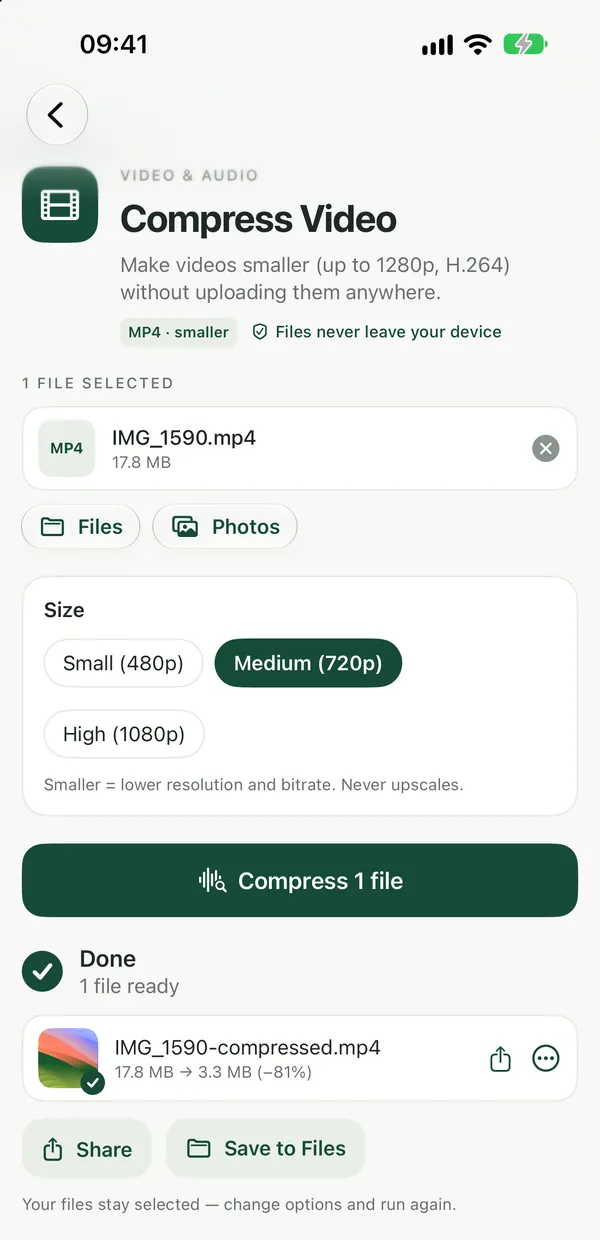
Filevale: File Converter & QR includes a video compressor that runs on the device. Pick the video, compress it, then share the smaller file to Mail. It is free to use, needs no account, and the video is not uploaded anywhere.
Option 2: Compress it in your browser
Works in Safari on iPhone or on a computer.
Compress VideoMake videos smaller (up to 1280p, H.264) without uploading them anywhere.Open tool- Open Compress Video and choose the clip.
- Start the compression. The video is re-encoded as H.264 MP4 at up to 1280p.
- Keep the tab open until it finishes, then save the result.
- Attach the smaller file in Mail.
A computer is much faster than a phone for long clips. The file stays on your device the whole time. For a deeper explanation, read How to Reduce Video File Size for Email, WhatsApp and Discord.
Still too big? Make it shorter or smaller
Compression has a limit. If the result is still over, try these in order:
- Trim it. Cut the start and end so only the part that matters remains. Length is a direct multiplier of size.
- Convert to MP4. iPhone videos are often MOV, sometimes in HEVC, which some recipients cannot play. MOV to MP4 makes a version that plays on Windows and most apps.
- Make a GIF for a short moment. Video to GIF is good for a few seconds, though GIFs can be large.
- Send only the sound. If they need the audio, MP4 to MP3 is tiny by comparison.
- Send the video in parts. Split a long recording into a few shorter clips and send them in separate emails.
Other ways to send a large video
Sometimes the better answer is not email at all.
- A link instead of an attachment. Apple's Mail Drop and cloud storage links let a recipient download a big file. These upload the video to a cloud service, so consider whether that is acceptable for a private clip.
- AirDrop works well when the other person is nearby and has an Apple device.
- A messaging app. Many chat apps compress videos automatically.
If the clip is private, such as family footage or a medical or legal recording, shrinking it locally and sending a normal attachment avoids a cloud upload.
Quality: what to expect
Compressing drops resolution and detail. A phone screen or laptop usually shows a 720p clip well. If the video has small text, fast action or low light, check the result before sending. Keep the original in Photos, because compression is not reversible.
Checklist
- Check the file size against your mail limit.
- Compress to a lower resolution and bitrate.
- Trim to the part the recipient needs.
- Convert MOV or HEVC to MP4 for compatibility.
- Play the result before sending.
- Keep the original in Photos.
- Use a link or AirDrop if it still will not fit.
Frequently asked questions
What is the biggest video I can email from iPhone?
It depends on the mail service. Many cap attachments around 20 to 25 MB, so check your provider's stated limit and the recipient's.
Does compressing a video reduce quality?
Yes, some. Lower resolution and bitrate make a smaller file with less detail. A 720p version usually looks fine on a screen.
Is my video uploaded when I use Filevale?
No. In the browser it is compressed with FFmpeg on your own device, and in the iPhone app it is processed on-device. Nothing is transferred to Filevale.
Why is my compressed video still too large?
It may be long. Trim it, lower the resolution further, or split it into parts. If it still does not fit, send a link through a cloud service.
Can I compress a video on iPhone without an app?
Yes, in Safari with Compress Video. It works best for shorter clips, because phones are slower than computers at encoding.