To fix PDF pages that come back sideways after saving in Preview, rotate them again in a different tool and save a fresh copy: Rotate PDF turns pages by 90° right, 180° or 90° left in your browser and changes nothing else. You deleted a page or two in Mac Preview, saved, and now some pages open turned 90 degrees, and rotating them back in Preview doesn't stick. Here is how to get every page upright again, whether the whole file is affected or only a few pages.
Why this happens
A PDF page has its content plus a separate rotation setting that tells the viewer which way to show it. When an app saves the file, it can write that setting in a way another viewer reads differently, so the page looks fine in one app and sideways in the next. Rotating the page again in the same app often just repeats the problem. Saving the rotation with a different tool writes it cleanly into a new file.
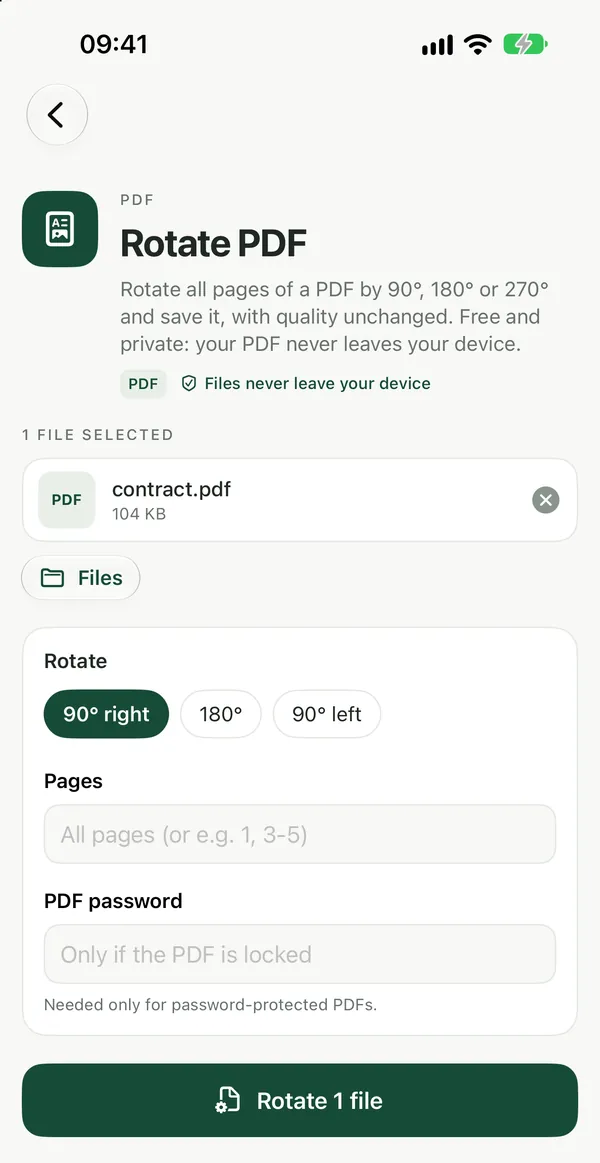
Fix it when every page is sideways
Rotate PDFRotate all pages of a PDF by 90°, 180° or 270° and save it, with quality unchanged. Free and private: your PDF never leaves your device.Open tool- Open Rotate PDF and drop your file on the page, or click to browse.
- Choose the rotation: 90° right, 180° or 90° left, then click Rotate. Everything happens on your device.
- Download the PDF and open it in Preview and in one other viewer to check.
If the result is still wrong, run it again on the same file with a different option. Only the page rotation changes; content and quality stay the same. The file is not uploaded, and no sign-up is needed to download.
Fix it when only some pages are sideways
Extract PDF PagesSave selected pages of a PDF (e.g. 1, 3-4) as a new PDF without changing them. Private, in-browser PDF page extractor, no upload.Open toolRotate PDF turns all pages of a file at once, so for a mix of upright and sideways pages, work on the sideways ones separately:
- Use Extract PDF Pages to copy the sideways pages (for example
3, 7-8) into a new PDF, then rotate that file with Rotate PDF. - Combine the original and the rotated file into one PDF with Merge PDF.
- Remove the old sideways copies with Delete PDF Pages, entering their page numbers.
- Put the fixed pages back in their places with Organize PDF Pages, below.
Put the pages back in order
Organize PDF PagesReorder the pages of a PDF by typing the new order. Runs in your browser.Open toolType the new page order and click Reorder pages in. Pages are reordered exactly as you list them; nothing else changes. Check the page numbers in the merged file before you type the order, since they shift after you delete pages.
Fixing it inside Preview
You can also try again on the Mac itself. Select the page thumbnail in the sidebar, rotate it with Tools → Rotate Left or Rotate Right, then use File → Export as PDF to save a new copy instead of saving over the old one. Another option is File → Print and then Save as PDF from the PDF menu in the print dialog. These steps often help, but if the pages still flip in other apps, use the browser steps above.
If something else is the problem
- The pages are upside down, not sideways: use the 180° option in Rotate PDF.
- The wrong pages went missing when you deleted pages: go back to your original file if you still have it and remove pages with Delete PDF Pages instead; the rest stay untouched.
- Pages are in the wrong order after saving: fix it with Organize PDF Pages.
- The PDF won't open at all after saving: try Repair PDF.
For more page tools, see the PDF tools page or the guide to merging PDF files.
Frequently asked questions
Does rotating a PDF reduce its quality?
No. Rotate PDF only changes the page rotation; the text, images and quality stay the same, so you can rotate a file as many times as you need.
Can I rotate just one page with Rotate PDF?
Rotate PDF turns all pages of a file. To fix a single page, copy it out with Extract PDF Pages, rotate that file, then merge it back and reorder the pages as described above.
Is it safe to fix a private PDF this way?
Yes. Every Filevale tool runs in your browser and your files are not uploaded, so contracts, statements and other confidential documents stay on your device.