To compress a large PDF on iPhone, open Compress PDF in Safari, pick the file from Files, tap Compress and save the smaller copy. It works best on scanned documents and image-heavy PDFs, which are exactly the files that fill up your storage or bounce back from email. The tool is free with no watermarks, and the PDF is processed in your browser instead of being uploaded, which matters for signed forms, IDs and contracts.
The easiest route: the Filevale app
If you handle PDFs on your phone often, the Filevale iPhone and iPad app on the App Store has the same kind of tools, working on your device. If you would rather not install anything, the browser tool below does the job in Safari.
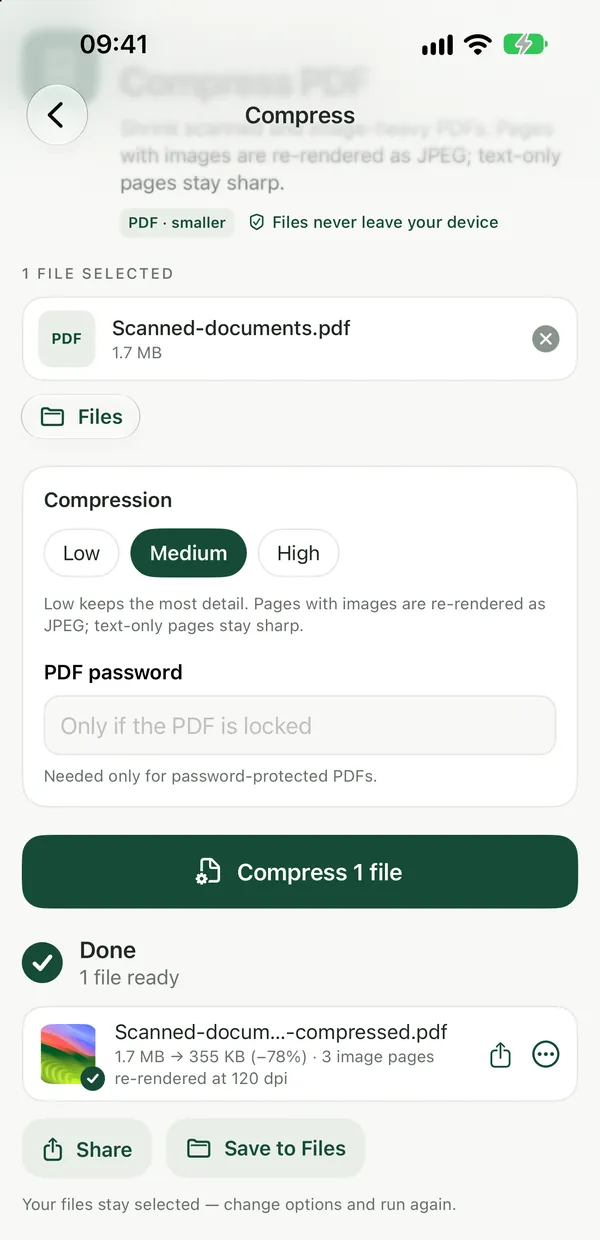
Compress the PDF in Safari
Compress PDFShrink scanned and image-heavy PDFs. Pages are re-rendered as images, so text is no longer selectable.Open tool- Open Compress PDF in Safari and tap the drop area to browse. Choose your PDF from the Files app. You can add several at once.
- Adjust the quality if you like, then tap Compress. Everything happens on your iPhone.
- Download the compressed PDF and save it to Files.
- Check the new size. If it is still too big, lower the quality and run it again on the same file.
Each page is re-rendered as a JPEG image. That is why scans and photo-heavy PDFs shrink so much, and also why the text in the compressed copy is no longer selectable or searchable. Keep the original if you may need to copy text from it or search it later.
Find out what makes the PDF so big
PDF Size BreakdownSee which pages and what content make a PDF heavy, with a page-by-page table. Results show right on the page.Open toolNot every large PDF is large for the same reason. PDF Size Breakdown shows you what makes a PDF so big, so you can tell whether compression will help or whether you should trim pages instead.
If the problem is something else
- The file is a phone scan of paper documents. This is where Compress PDF helps most, because every page is already a photo.
- The PDF is mostly text exported from Word or a website. Re-rendering text pages as images may barely shrink the file, or can even make it bigger. Remove what you don't need with Delete PDF Pages, or split it into smaller parts with Split PDF.
- You have to sign a form and send it back. Add your signature with Sign PDF, which lets you draw, type or upload a signature and place it, then compress the signed copy if it is still too large.
- Only a few pages matter to the recipient. Copy just those pages into a new file with Extract PDF Pages.
- Big PDFs are eating your iPhone storage. Once you have checked that the compressed copy is readable, you can delete the original in Files. Remember that deleted files stay in Recently Deleted until you empty it.
What iPhone can do on its own
iOS has no built-in setting that compresses a PDF. Zipping the file in Files with Compress rarely makes a PDF much smaller, because the images inside are already compressed. If the only problem is sending a big attachment, Mail on iPhone can offer Mail Drop for attachments that are too large, which sends a download link instead of the file itself.
For more on email limits and why some PDFs grow when compressed, see How to Compress a PDF for Email. Other PDF tools are on the PDF tools page.
Frequently asked questions
Will my PDF be uploaded to a server?
No. Compress PDF runs in your browser using PDF-lib, PDF.js and qpdf compiled to WebAssembly, so the file never leaves your iPhone. That makes it suitable for confidential documents such as contracts, medical forms and bank statements.
Why can't I select text after compressing?
The tool re-renders each page as a JPEG image, which is what makes scans much smaller. The side effect is that the text becomes part of the picture, so it can't be selected or searched. Keep the original PDF if you need that.
Does it work on iPad and other phones too?
Yes. Compress PDF works in any modern browser, including Safari, Chrome, Edge and Firefox, on iPhone, iPad, Android, Mac, Windows and Chromebook. There is nothing to install.