To merge PDF files on a Mac, open the first PDF in Preview, show the Thumbnails sidebar, drag the other PDFs into it, then export the result as a new PDF. That's free and built in. There's also a one-click Finder shortcut, and a browser tool for when Preview fights you on page order or you don't want to touch the original files.
This guide walks through all three, including the two mistakes that trip people up most: Preview quietly changing your original file, and pages ending up in the wrong order.
Method 1: Merge PDFs with Preview
- Open the first PDF in Preview.
- Choose View > Thumbnails so the page sidebar appears.
- Drag the second PDF from Finder into the sidebar. Drop it below the last thumbnail to add it at the end, or between two thumbnails to insert it there.
- Repeat for any other PDFs. Drag thumbnails up or down to fix the order.
- Choose File > Export as PDF, give the file a new name and save.
To add only a few pages from another PDF, open both files, show thumbnails in each, and drag just the pages you want from one sidebar to the other.
The pitfall: Preview edits the original
Preview saves changes automatically. If you merge into your original invoice and close the window, the invoice now contains every page you dropped in. That's why step 5 uses Export as PDF with a new name. If it already happened, use File > Revert To > Browse All Versions to get the earlier version back.
Method 2: Finder Quick Action
- Select the PDFs in Finder (Command-click each one).
- Right-click and choose Quick Actions > Create PDF.
Finder makes a new combined PDF next to the originals, which stay untouched. The catch is order: files are merged in the order Finder sorts them, usually by name. Rename them 01-cover.pdf, 02-report.pdf and so on before merging, or you'll need to reorder pages afterwards. Quick Actions also aren't great with large batches mixed with images.
Method 3: Merge PDFs in your browser
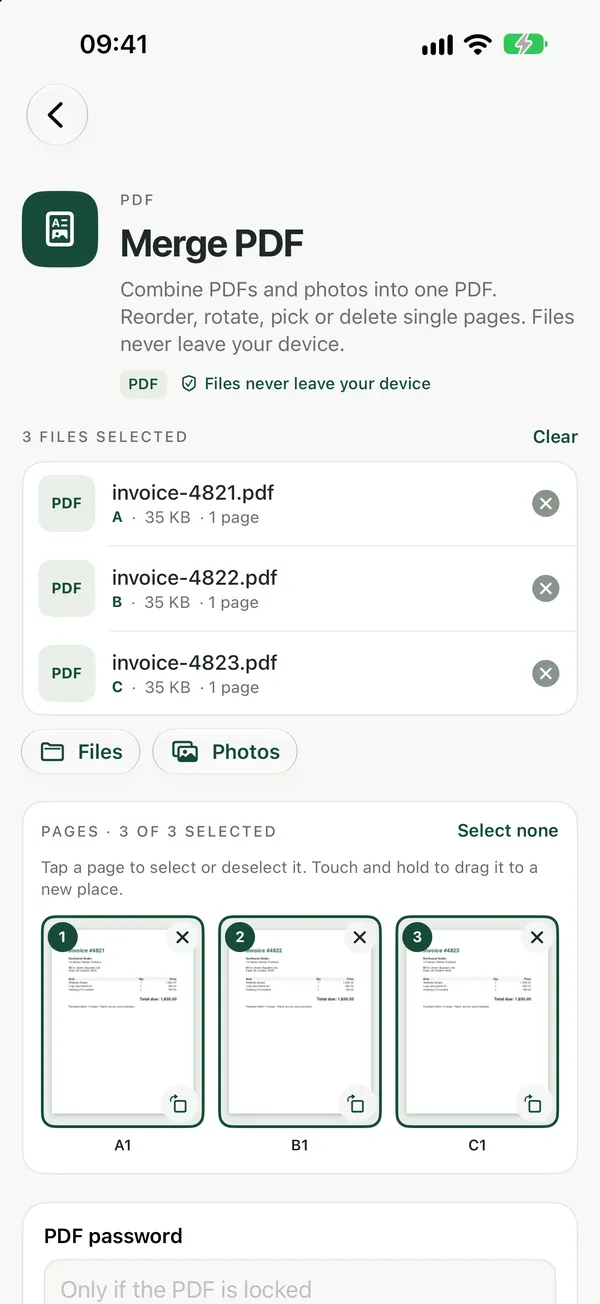
Merge PDFCombine PDFs into one file, in the order you want. Files never leave your device.Open tool- Open Merge PDF in Safari or Chrome.
- Drag your PDFs onto the page in any order.
- Drag the files into the order you want; what you see is what you get.
- Download one combined PDF.
Your originals aren't modified, and nothing is uploaded: the merge happens in the browser tab on your Mac. This is the easiest route when you're on a shared or work Mac, or when the files came from different places and you want a clear visual order before saving.
A worked example: an expense report with receipts
You have a one-page expense summary and five receipt PDFs from different shops. In Finder their names are random, so a Quick Action would put them in a meaningless order. Drop all six into Merge PDF, put the summary first and the receipts in date order, and download. If one receipt PDF has an extra page of ads, open the merged file in Organize Pages and delete that page, or pull just the pages you need from it with Split PDF before merging.
Fixing problems after you merge
- A page is sideways. Rotate it in Preview (select the thumbnail, press Command-R) or in Organize Pages, then export again.
- The file is too big to email. Merging adds the sizes together. Compress the result afterwards rather than each source file.
- One file is password-protected. Preview asks for the password and then may refuse to export. Remove the protection first with the owner's password, then merge.
For the same task on Windows, iPhone or Android, see our general guide to merging PDF files.
Frequently asked questions
Is there a free way to merge PDFs on a Mac?
Yes, two are built in. Preview combines PDFs by dragging files into its Thumbnails sidebar, and Finder's Create PDF Quick Action merges selected files in one click. A browser tool like Filevale's Merge PDF is also free, needs no install and lets you set the order visually first.
Why did Preview change my original PDF?
Preview saves edits automatically, so dragging pages into an open file changes that file. Always finish with File, Export as PDF under a new name. If the original was already overwritten, File, Revert To, Browse All Versions lets you restore an earlier copy of it.
How do I control the page order when merging?
In Preview, drag thumbnails in the sidebar before exporting. With the Finder Quick Action, rename files with number prefixes because it follows Finder's sort order. In a browser merge tool, you drag the files into order on screen before downloading, which is the most predictable option.
Can I merge only some pages from each PDF?
Yes. In Preview, open both PDFs with thumbnails showing and drag only the pages you need from one sidebar into the other. Alternatively, extract the pages you want first with a split tool, then merge those smaller files together in the order you choose.