The usual advice for an encrypted ZIP is "install 7-Zip or WinRAR". That works on a Windows PC, but not on a work laptop where you cannot install software, a Chromebook, or a phone. And uploading private files to an online zipper defeats the point of encrypting them.
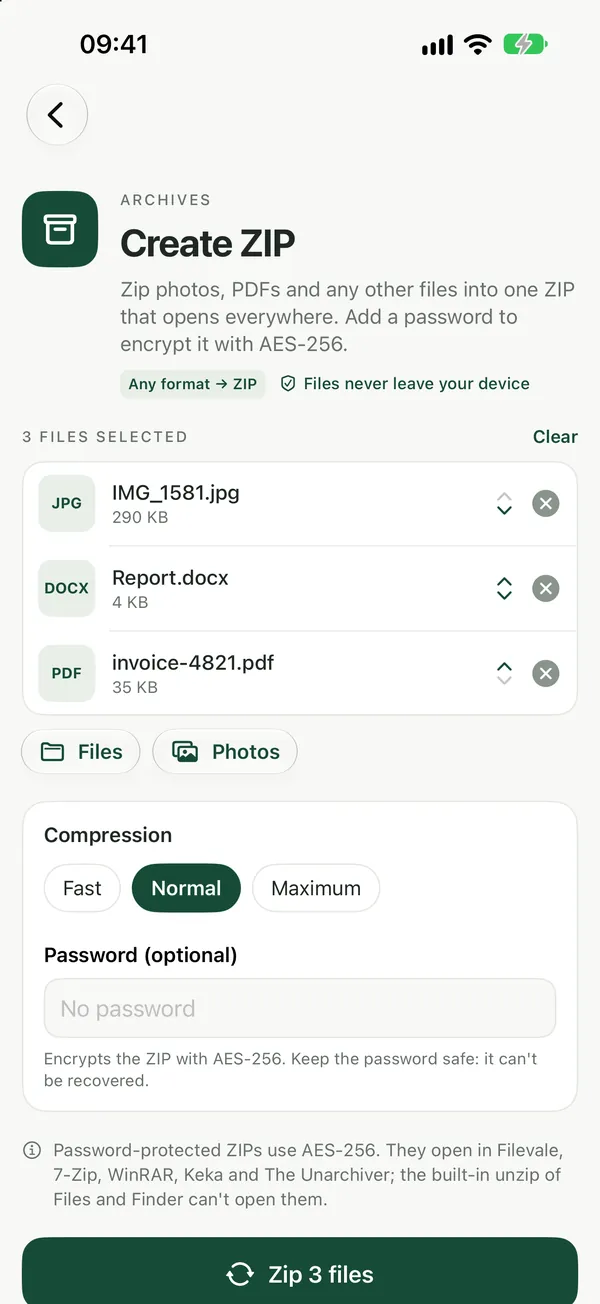
Filevale's Password-Protect ZIP tool creates an AES-256 encrypted ZIP directly in your browser. Your files are never uploaded.
Create the encrypted ZIP
Password-Protect ZIPEncrypt files into a password-protected ZIP with AES-256 in your browser. The password and files never leave your device.Open tool- Open Password-Protect ZIP.
- Add the files you want to protect. You can add several at once.
- Type a strong password. A long passphrase of four or more random words is easier to remember and harder to guess than a short complex one.
- Download the ZIP. Every file inside is encrypted with AES-256.
The archive is built by the page in your tab, so the files and the password stay on your device.
How the recipient opens it
AES-encrypted ZIPs are a widely supported standard, but not every built-in unzipper handles them:
- Windows: File Explorer's built-in ZIP support may refuse AES-encrypted archives. 7-Zip, WinRAR or a browser tool open them fine.
- Mac: the Archive Utility may also refuse them. Use a third-party unarchiver or a browser tool.
- Any device: Filevale's Unzip tool opens password-protected ZIPs in the browser, again without upload.
Send the password through a different channel than the file, for example the ZIP by email and the password by text message.
AES-256 vs "ZipCrypto"
Older ZIP encryption, often called ZipCrypto, is weak and can be cracked with free tools. AES-256 is the strong option in 7-Zip and WinRAR, and it is what Filevale uses. If a tool does not say which method it uses, assume it is the weak one.
To make a normal ZIP without a password, use Create ZIP. To open RAR or 7Z files, see How to Open RAR, 7Z and ZIP Files or the archive tools page.
On iPhone and iPad, the free Filevale app handles ZIP, RAR and 7Z on-device. A Mac app is coming soon.
Frequently asked questions
Can I make a password-protected ZIP without installing software?
Yes. Filevale's Password-Protect ZIP tool runs in any modern browser and creates an AES-256 encrypted ZIP without installing 7-Zip or WinRAR and without uploading your files.
Is an online ZIP encryption tool safe?
It depends on whether it uploads your files. Filevale builds the ZIP inside your browser tab, so the files and the password never leave your device.
What if I forget the password?
There is no way to recover it. AES-256 is designed so that the files cannot be opened without the password, so store it somewhere safe such as a password manager.