To make a QR code for a Google Form, copy the form's share link from the Send menu in Google Forms, then paste it into a QR code generator as a link. Download the code, scan it once with your phone to check it opens the form, and print or share it. Here is the whole process, plus a few things that commonly go wrong with sign-up sheets, event check-ins and feedback forms.
Step 1: Copy the right link from Google Forms
Open your form in Google Forms and click Send in the top right. Choose the link tab (the chain icon) and copy the link shown there. You can tick Shorten URL first to get a shorter forms.gle address. Both versions open the same form.
Don't copy the address from your browser's address bar while you are editing. That link ends in /edit and leads to the editor, which people without edit access can't use. The link from the Send menu is the one meant for respondents.
Before you go further, open the copied link in a private browser window. If you see the form and can fill it in, so will the people who scan your code. If you see a sign-in page or a message that the form isn't accepting responses, fix that in the form's settings first.
Step 2: Turn the link into a QR code
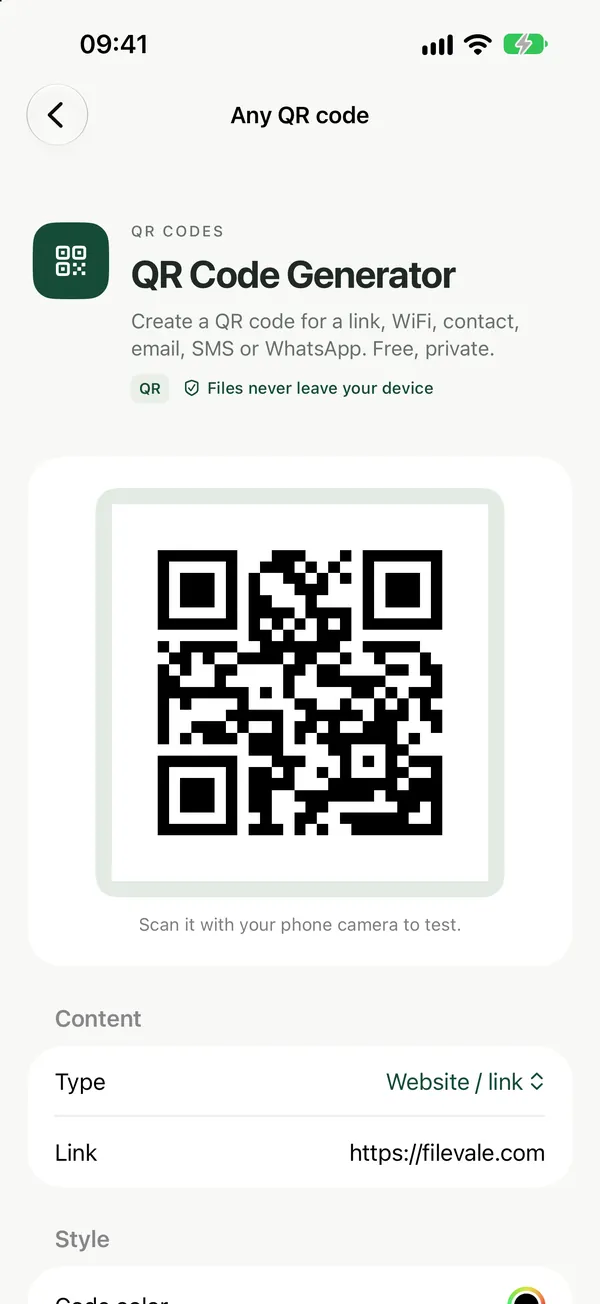
QR Code GeneratorCreate a QR code for a link, WiFi, contact, email, SMS or WhatsApp. Free, private.Open tool- Open the QR Code Generator, choose the link type and paste your form's link.
- Optionally pick colors, a size for print, SVG or a logo. The preview updates as you type.
- Download the QR code as PNG, SVG or JPG.
- Scan it with your phone camera to check it opens the form before you print it.
If you only ever need link codes, Link to QR Code is a page set up for exactly that. The code is made in your browser and what you type is not uploaded. The tools are free with no watermarks, and no sign-up is needed to download.
Add your logo or brand colors
QR Code with LogoAdd your logo and brand colors to a QR code that still scans.Open toolFor posters, school newsletters or a stand at an event, you may want the code to match your branding. QR Code with Logo puts your logo in the middle and lets you pick colors. Keep enough contrast: a dark code on a light background scans best. With a logo the code uses high error correction, so up to about 30% of it can be covered and still scan. For more on this, see how to make a QR code with your logo that still scans.
Tips for printing and sharing
- Pick SVG for print. An SVG stays sharp at any size, which helps for posters and banners. PNG or JPG is fine for slides, emails and social posts.
- Use the short link. A
forms.glelink holds fewer characters, so the code has fewer, larger squares and is easier to scan from a distance. - Add a line of text. Something like "Scan to sign up" next to the code tells people what they will get.
- Test the printed copy. Scan the code from the actual print or screen, at the distance people will stand.
A built-in option in Chrome
If you just need a quick code for a slide, Chrome on a computer can create a QR code for the page you have open from its share options. Open the form's respondent link in Chrome and look for Create QR code. It doesn't offer the colors, print sizes or logo described above, but for a one-off it saves a step.
Frequently asked questions
Will the QR code stop working if I edit the form?
No. Editing questions in Google Forms doesn't change the form's link, and a Filevale QR code is static: the link is stored in the code itself, so it doesn't depend on our servers and isn't tracked. The code only stops leading to a working form if you delete the form or stop accepting responses.
Can I see how many people scanned the code?
Not from the QR code. Static codes aren't tracked, so there is no scan count. Use the response count in the Responses tab of your Google Form instead, which tells you how many people actually filled it in.
Can I make QR codes for other things, like the event WiFi?
Yes. The QR Code Generator also makes codes for WiFi, contacts, email, SMS and WhatsApp. If guests need to get online before filling in your form, see how to make a WiFi QR code, or browse all QR code tools.