iPhone photos are saved as HEIC, which Windows, older Android phones and many websites still refuse to open. The quick fix is a free online converter, but most of them, including CloudConvert, Convertio and FreeConvert, upload each photo to their servers first. For family pictures, screenshots of documents or photos of IDs, that is an unnecessary risk.
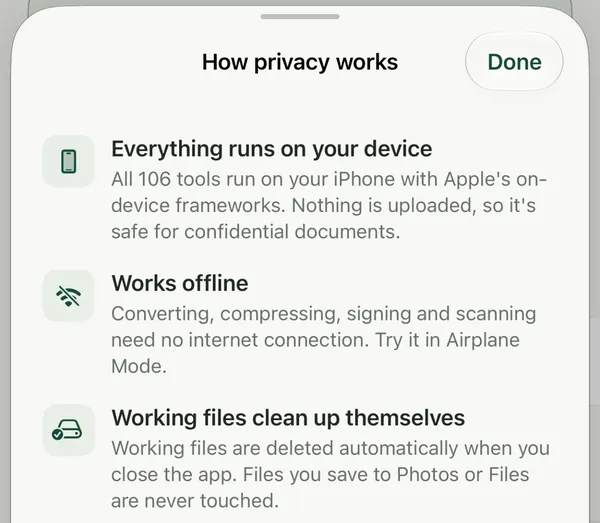
Filevale converts HEIC to JPG inside your browser, so your photos never leave your device.
Convert HEIC to JPG privately
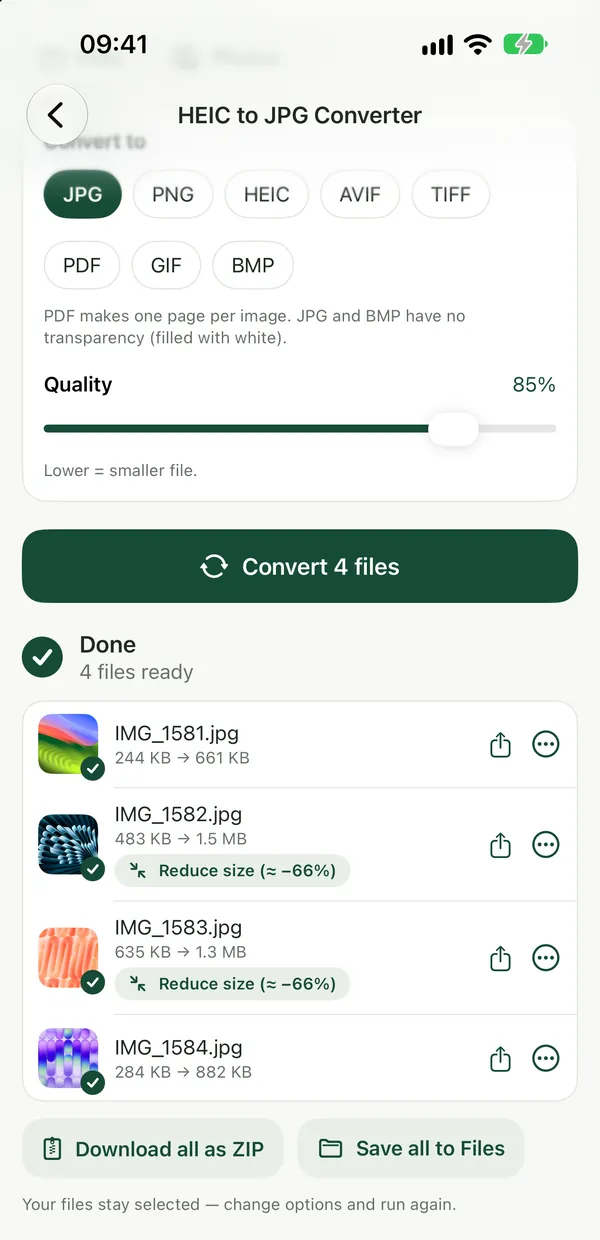
HEIC to JPG ConverterConvert iPhone HEIC photos to JPG right in your browser. Files never leave your device.Open tool- Open HEIC to JPG on filevale.com.
- Drop one photo or select a whole batch.
- Keep JPG as the output, or choose PNG, WebP or AVIF.
- Download the JPGs one by one or all together as a ZIP.
The conversion uses a HEIC decoder running in your tab and the browser's own image encoder. You can confirm nothing is uploaded in the Network tab of your browser's developer tools: no photo leaves the page.
Why "no upload" matters for photos
- Location data. iPhone photos often contain GPS coordinates in their metadata. Uploading them shares where they were taken.
- What's in the picture. People photograph passports, prescriptions and bank cards to send later. Those should not sit on a third-party server.
- Volume. A batch of 200 holiday photos uploads slowly on mobile data. Converting locally skips the upload entirely.
Other ways to convert HEIC
- On iPhone: in Settings → Camera → Formats, choose Most Compatible so new photos are saved as JPG. Photos already taken stay HEIC.
- On Mac: Preview can export a HEIC as JPG. See How to Convert HEIC to JPG on Mac.
- On Windows: you may need an extension from the Microsoft Store to view HEIC at all, which is why many people convert instead. See How to Convert iPhone HEIC Photos to JPG.
To turn photos into a document instead, use HEIC to PDF. All image tools are on the image tools page.
On iPhone and iPad, the free Filevale app converts HEIC on-device from the share sheet. A Mac app is coming soon.
Frequently asked questions
Is there a HEIC to JPG converter that doesn't upload photos?
Yes. Filevale's HEIC to JPG converter on filevale.com runs entirely in your browser, so your photos are converted on your own device and never uploaded to a server.
What is the best free HEIC to JPG website?
For privacy, choose one that converts locally. Filevale is free, needs no account, converts batches into a ZIP and works on Windows, Mac, Android, Chromebook and iPhone browsers.
Does converting HEIC to JPG reduce quality?
Slightly, because JPG is a lossy format, but at the default quality the difference is not visible in normal viewing. Choose PNG as the output if you need a lossless copy.