To scan a document with your phone, lay the page on a dark, plain surface in good light, photograph it with your camera, and turn the photo into a cropped PDF. You can do that in the browser with Filevale's Scan to PDF, or with the scanner built into your phone's apps. This guide covers both, plus habits that make a phone scan look clean.
Scan with your phone camera in the browser
Scan to PDFScan documents with your phone or laptop camera, or use photos you already took: pages are auto-cropped and cleaned up, then saved as one PDF.Open toolScan to PDF uses your phone or laptop camera, or photos you have already taken. Each page is auto-cropped and cleaned up, then all pages are saved as one PDF.
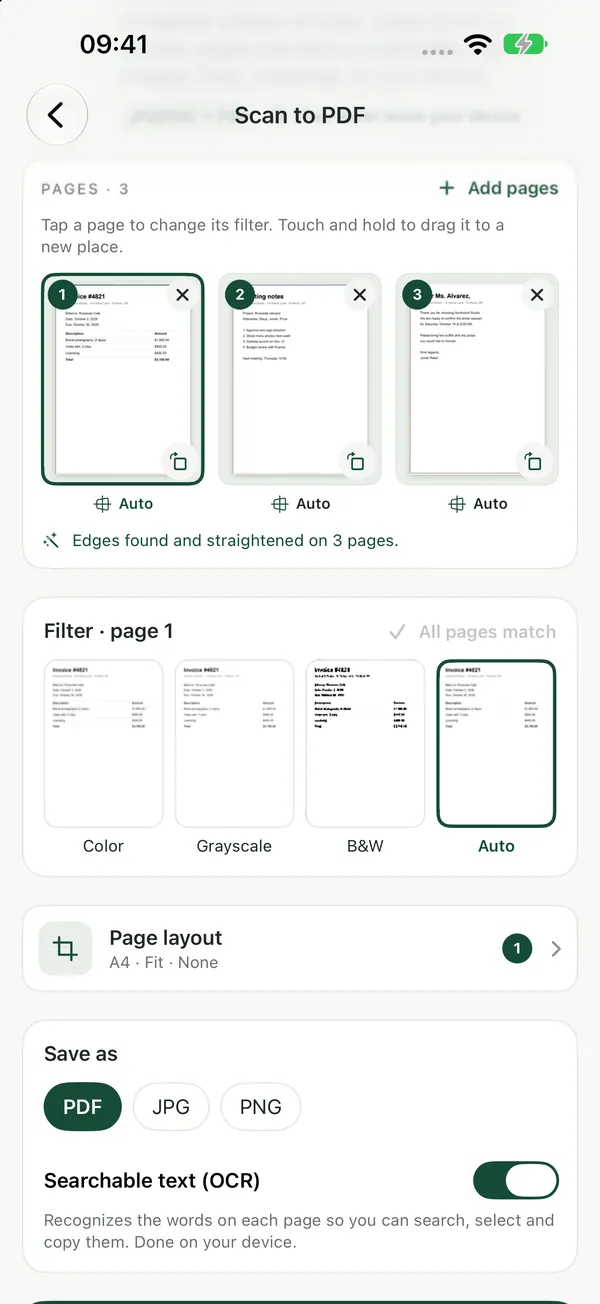
- Open Scan to PDF on your phone and capture each page with the camera, or choose JPG, PNG, WEBP or HEIC photos you already have.
- Put the pages in the order you want, and remove any bad shots with ✕.
- Click Create PDF from N files (the button shows how many pages you added).
- Download the PDF. Change the options and run again on the same files if you need to.
The camera picture is only shown and captured inside the page; nothing is recorded or uploaded. The PDF is built on your device, so it suits IDs, contracts and medical forms. The tool is free with no watermarks, and no sign-up is needed to download.
Get a clean scan: light, background and angle
The auto-crop looks for bright paper against a darker background, then crops to it and straightens the page when the edges are clear. You get the best result when you help it:
- Use a dark, plain background. A dark table beats a patterned cloth or a white desk.
- Find even light. Daylight from a window or a bright room beats the phone's flash, which tends to leave a glare spot.
- Hold the phone flat above the page. Shooting straight down keeps the text even and the edges clear.
- Fill the frame, but keep all four corners visible. The crop needs to see the paper's edges.
If the crop still misses, you can turn cropping off or adjust the frame by hand.
Already have photos of the pages?
HEIC to PDFTurn HEIC images into a single PDF, right in your browser.Open toolIf you snapped the pages earlier with the normal camera app, you don't need to scan again. Scan to PDF accepts those photos too. iPhone photos are usually HEIC; HEIC to PDF puts them into one PDF without the crop and clean-up step, and Image to PDF does the same for any mix of images. For more on that route, see how to convert multiple JPG files into one PDF.
The scanner already on your phone
Your phone may already have a scanner. On an iPhone, the Notes app and the Files app both have a Scan Documents option that finds the page edges for you. On Android, the Google Drive app has a Scan button that saves the result as a PDF in Drive. A browser tool helps when you are on a borrowed device or prefer not to put the file in a cloud app first.
What a phone scan can't do yet
Pages are saved as images in the PDF, so the text can't be selected or searched. Text recognition (OCR) is not included in the web version; only the Filevale iPhone app can make the scanned text searchable. That also means PDF to Word won't turn a scanned page into editable text, because scanned PDFs need OCR first. If you only need to read, print, send or sign the document, the scan is all you need. To sign it, use Sign PDF, which lets you draw, type or upload a signature and place it on the page.
Frequently asked questions
How do I make a scanned PDF small enough to email?
Scans are big because every page is a photo. Run the file through Compress PDF, which is made for shrinking PDFs for email and uploads. The guide on compressing a PDF for email explains when it helps most and what to try if the file is still too big.
Can I scan a multi-page document into one PDF?
Yes. Capture or add every page, put them in order, remove any you don't want with ✕, and Scan to PDF saves them all as a single PDF. If you notice later that a page is in the wrong place, Organize PDF Pages puts the pages of a PDF in a new order.
Does Scan to PDF work on both iPhone and Android?
Yes. It works in any modern browser, such as Safari, Chrome, Edge or Firefox, on iPhone, iPad, Android, Mac, Windows and Chromebook. There is nothing to install, and the scan never leaves your device.