When an assignment will not upload to a school or university portal, the fix is nearly always the same: find out what the portal's limit is, see what is making your file big, and make a smaller copy. A Word document full of photos, a phone-scanned PDF or a screen recording is usually the cause. Compress the file below the limit and check it before the deadline. You can do all of this in your browser, and nothing is uploaded.
A note on limits: learning platforms such as Canvas and Blackboard let each school or instructor set their own, so we do not quote numbers. Read the message on the upload screen, check the assignment instructions, or ask your teacher. Whatever the number is, the steps below are the same.
Step 1: Find out why the file is big
Look at what is inside the file.
- A Word or Google Docs file with photos. Each pasted photo can be several megabytes.
- A scanned or photographed PDF. Every page is a full-resolution image.
- A slide deck with images or video.
- A video or audio recording. Video grows fast, a 4K phone clip is huge.
- A ZIP of several files. The total counts.
For a PDF, PDF Size Breakdown shows which pages or images take up the space, so you know whether compression will help.
PDF Size BreakdownSee which pages and what content make a PDF heavy, with a page-by-page table. Results show right on the page.Open toolStep 2: Shrink it the right way
A document with images: export to PDF, then compress
Word to PDFConvert Word documents (.docx) to PDF with headings, bold and italic, lists, tables and images. Old .doc files: save as .docx first.Open toolIf your teacher accepts PDF, export from your word processor, or convert with Word to PDF for a simple document. Then compress it:
Compress PDFShrink scanned and image-heavy PDFs. Pages are re-rendered as images, so text is no longer selectable.Open tool- Open Compress PDF and drop your file.
- Choose a level and run it. Your browser does the work.
- Compare the new size with the limit. If it is still too big, try a stronger level.
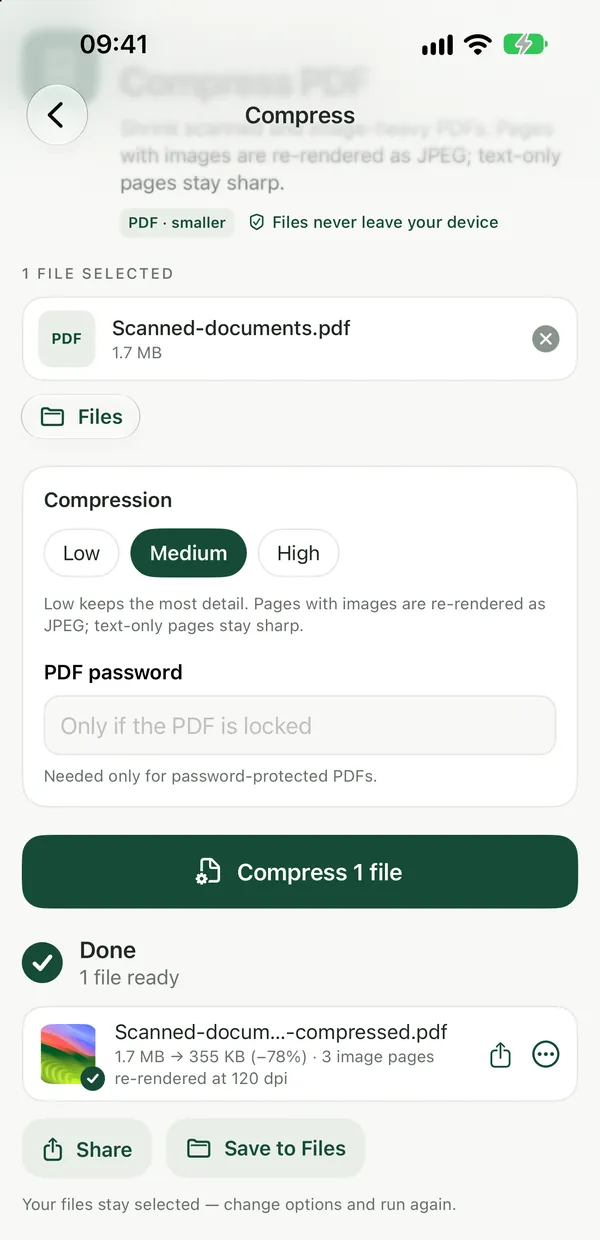
A big report with many photos can drop a lot. Text-only documents are small already, so if one of those is rejected, check that the file is really what you think it is.
A scanned assignment
Handwritten work photographed with a phone is the classic oversized file. Combine the pages into one PDF, then compress. If you have not scanned yet, Scan to PDF turns phone camera shots into a single PDF, and How to Scan Documents Into a PDF With Your Phone explains the steps. Keep the text readable: Compress a Scanned PDF Without Making the Text Unreadable.
Several files, one slot
Use Merge PDF to combine them into one document. If instead the total is too large, Split PDF lets you upload in parts if your teacher agrees.
A video or screen recording
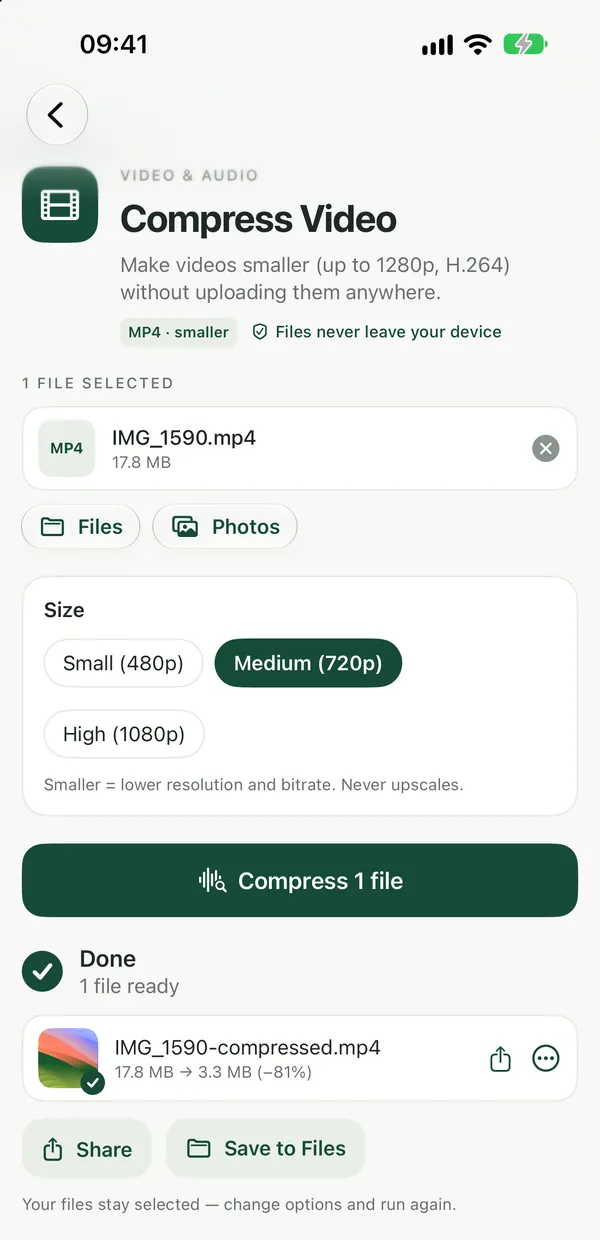
Compress VideoMake videos smaller (up to 1280p, H.264) without uploading them anywhere.Open toolCompress Video re-encodes the clip at a smaller resolution and bitrate, in your browser, using FFmpeg. Close other tabs and keep this one open until it finishes. For a longer walkthrough, see How to Reduce Video File Size.
A photo or image
Reduce File Size shrinks pictures and other files to fit. The guide How to Get a File Under a Size Limit covers the details.
Step 3: Check before you submit
- Open the smaller file and scroll through every page. Make sure nothing is blurry or missing.
- Confirm the file type is what the assignment asks for (PDF, DOCX, MP4).
- Keep the original so you can fix issues later.
- Give the file a clear name with your name and the assignment, if that is the rule.
- Upload well before the deadline, and check that the portal shows the file as submitted.
Why use a no-upload tool for schoolwork
Assignments often contain personal details: your name, student number, sometimes family or health information. Free online compressors usually upload your file to their servers. Filevale processes it on your device, so the only copy that travels is the one you submit to your school. There is no account and no watermark on the result, which matters because a watermark on a graded assignment is a real problem.
Checklist
- Read the exact limit on the upload page or assignment instructions.
- Find the heavy part: images, scans or video.
- Compress or convert the file to fit.
- Open the result and check it is readable.
- Keep the original and submit early.
- If nothing fits, tell your teacher before the deadline and ask for another way to submit.
On your phone
If you wrote or scanned the assignment on an iPhone or iPad, Filevale: File Converter & QR does the compression on the device, including PDF, video and photos. It is free to use and needs no sign-up.
Frequently asked questions
What is the file size limit for Canvas or Blackboard?
It varies by school and instructor, so we do not quote one. The portal shows an error or the limit on the upload screen, and your instructor can confirm it.
My assignment is a Word file and too large. What should I do?
Compress the images inside it, or export it to PDF and compress the PDF. Ask whether PDF is acceptable first.
Will compressing lower my grade?
Not if the content stays readable. Stop compressing when text, diagrams or handwriting are still clear. Check every page after.
Is a free PDF compressor safe for schoolwork?
Many upload your file to a server. Filevale compresses in your browser, so the file never leaves your device.
The upload still fails after compressing. Why?
The file type may not be allowed, the name may contain unsupported characters, or your connection may be dropping. Try a simpler name, a different browser and a stable connection, then contact your instructor if it still fails.