When Word for Mac says a document is too large to save as PDF, switch the export to Best for printing or use File > Print > PDF > Save as PDF, which both create the PDF on your Mac instead of sending it to Microsoft's online conversion. If that still fails, as it can with a 278-page, 191 MB report full of photos, shrink the pictures or split the document into parts and merge the PDFs afterwards.
Why Word refuses to make the PDF
In Word for Mac, File > Save As with the PDF format offers two choices. Best for electronic distribution and accessibility uses a Microsoft online service, and very large documents can fail there. Best for printing converts locally on your Mac. Almost always, the file size comes from images: high-resolution photos or screenshots pasted into the document, each stored at full size.
Fix 1: Save locally from Word
- Open the document and choose File > Save As.
- Set File Format to PDF.
- Select Best for printing and click Export.
If that option is missing or also fails, choose File > Print, open the PDF menu at the bottom left of the print dialog and pick Save as PDF. This uses the macOS print system, so it doesn't depend on Microsoft's service.
Fix 2: Make the Word file smaller first
Select any picture, open the Picture Format tab and choose Compress Pictures. Apply it to all pictures in the document at a lower resolution, and delete cropped areas of pictures if Word offers it. Save a copy under a new name so the original keeps its full-quality images, then try the PDF export again.
Fix 3: Convert the DOCX in your browser
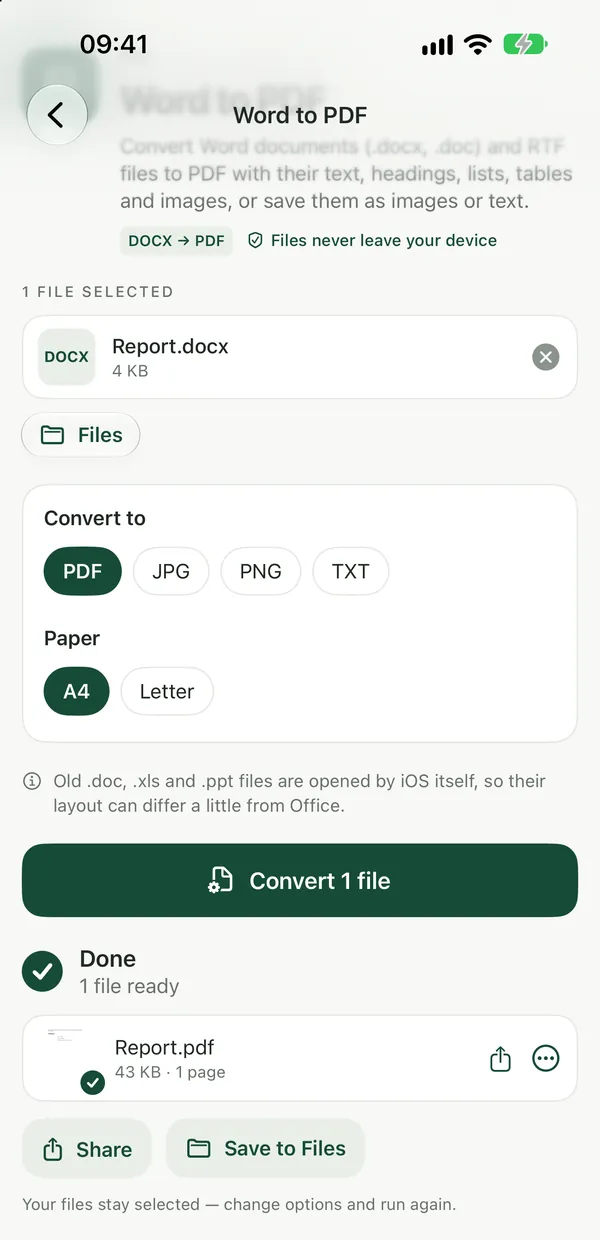
Word to PDFConvert Word documents (.docx) to PDF with headings, bold and italic, lists, tables and images. Old .doc files: save as .docx first.Open toolFilevale's Word to PDF converts .docx files to PDF in your browser; the file is not uploaded.
- Open Word to PDF and drop your DOCX file on the page, or click to browse.
- Click Convert. Everything happens on your device.
- Download the PDF. No sign-up is needed to download.
Headings, bold and italic, lists, tables and images are laid out on A4 pages with selectable text. It is not a copy of Word, so a document with a carefully designed layout can look different; for a pixel-perfect result, export from Word.
Fix 4: Split the document and merge the PDFs
Merge PDFCombine PDFs into one file, in the order you want. Files never leave your device.Open tool- In Word, save copies of the document that each hold one part, for example chapters 1–4, 5–8 and 9–12.
- Export each part to PDF with Best for printing or the Print dialog.
- Open Merge PDF, add the parts in order and combine them into one file.
If something else is the problem
- The file is an old
.doc: save it as.docxin Word first. DOC to PDF converts old.docfiles in the browser, but only the text comes through, without images, tables or formatting. - The PDF works but is too big to send: check what takes up the space with PDF Size Breakdown, then see how to compress a PDF for email and its trade-offs.
- You only need some pages: in the Print dialog, enter a page range before choosing Save as PDF.
- The PDF needs to fit an upload limit: the guide on getting a file under a size limit covers splitting and other options.
Frequently asked questions
Will choosing Best for printing lower the quality?
For most documents the result looks the same on screen and on paper. The main difference is that the PDF is made on your Mac instead of by Microsoft's online service, which is why it gets past the size error, though the accessibility tags that the online option adds may not be included.
Does Filevale upload my Word document to convert it?
No. Word to PDF runs entirely in your browser, so the document stays on your Mac. That matters for contracts, reports and other confidential files.
Can I make the finished PDF smaller afterwards?
Yes, with Compress PDF, which makes PDFs smaller for email and uploads. Look at the size breakdown first: if the images are the problem, compressing pictures in Word before exporting often gives a cleaner result.