To send a scanned ID, payslip or tax document to a landlord or accountant without handing it to a random website, scan it into one PDF on your own device, make it small enough to send, and protect it before it leaves. In Filevale every one of those steps runs in your browser, so the file is not uploaded to anyone except the person you send it to. Then share the password through a different channel than the file.
This guide gives a simple, careful routine. It does not replace advice from your accountant or the rules of your country, and it cannot control what the recipient does with the file once they have it.
Why a random converter site is risky
When you search for a merge or compress tool in a hurry, you often land on a site that uploads your file to its servers. That puts a copy of your passport or tax return on infrastructure you cannot see, for a period set by someone else. Many services say they delete files after a while, and many are reputable. But for identity documents the safest copy is the one that never leaves your device. See Private iLovePDF and Smallpdf Alternative for more.
Step 1: Scan it cleanly
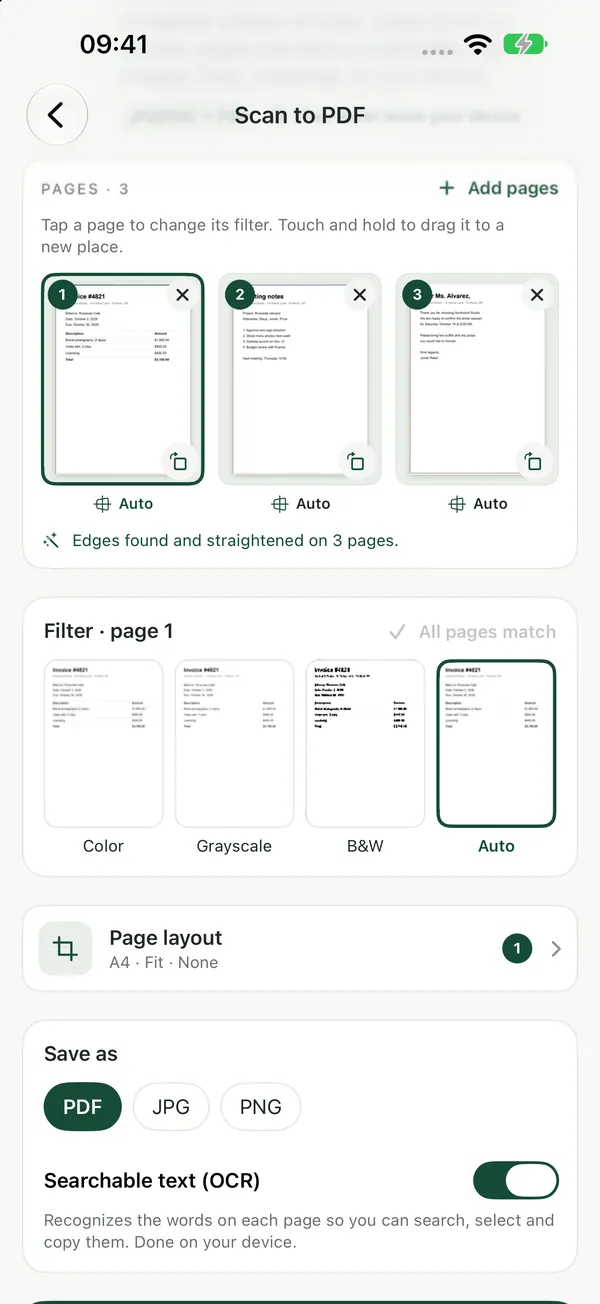
Use your phone camera with good light, put the document on a flat dark surface, and keep the page square in the frame. Skip photos with flash glare over numbers.
Scan to PDFScan documents with your phone or laptop camera, or use photos you already took: pages are auto-cropped and cleaned up, then saved as one PDF.Open toolScan to PDF turns camera photos into one PDF in your browser. For the full method, read How to Scan Documents Into a PDF With Your Phone.
Step 2: Combine and trim
If you have a front and back of an ID, or several payslips, merge them into one file in the order the recipient expects. Remove pages they do not need.
Merge PDFCombine PDFs into one file, in the order you want. Files never leave your device.Open toolUse Merge PDF to combine, and Extract PDF Pages or Split PDF to send only what is needed. Sending less is a privacy step too. If a landlord asks for proof of income, they usually do not need every page of every statement. Ask what is required.
Step 3: Make it small and strip hidden data
Many email services reject attachments over roughly 20 to 25 MB, and a phone scan can be several megabytes per page.
Compress PDFShrink scanned and image-heavy PDFs. Pages are re-rendered as images, so text is no longer selectable.Open toolCompress PDF shrinks it. Check that numbers and names are still sharp. See How to Compress a PDF for Email.
Remove hidden data
PDFs can carry metadata such as the author, creation software and dates. Remove PDF Metadata strips it. To see what is in your file before you send it, PDF Privacy Scan lists what it found. See also How to Delete Metadata From a PDF.
Step 5: Mark the copy and add a password
A common precaution for ID copies is a visible note saying what the copy is for, such as "For rental application at [address], [month, year] only". It does not stop misuse, but it makes casual reuse harder. Add one with Watermark PDF or Stamp PDF.
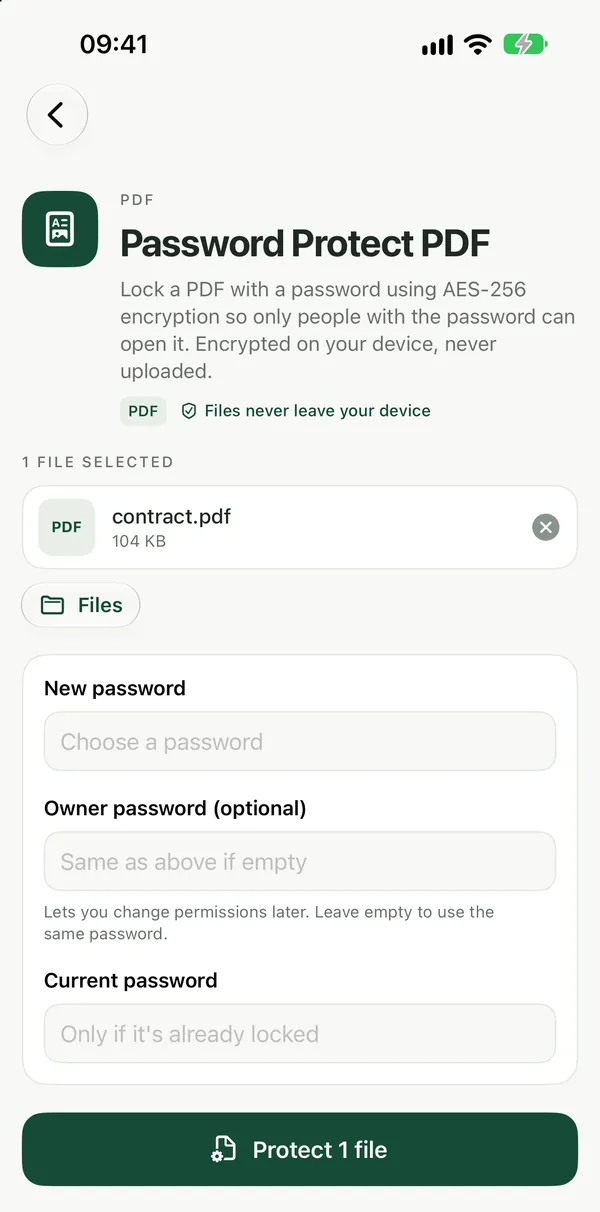
Watermark PDFAdd a diagonal text watermark such as DRAFT or CONFIDENTIAL to every page of a PDF. Done in your browser, the file stays on your device.Open tool Password Protect PDFLock a PDF with a password using AES-256 encryption so only people with the password can open it. Encrypted on your device, never uploaded.Open toolPassword Protect PDF encrypts the file in your browser. Choose a long password, not your birthday. Send the file by email and the password by a different channel, such as a text message or a phone call. If you are sending several files, Password-Protect ZIP bundles them under one password. For the details, see Password-Protected PDF.
Send and clean up
- Double-check the recipient's address before sending. Misdirected emails are the most common leak.
- Prefer the secure portal or link the landlord or accountant provides, if they have one, over regular email.
- Delete extra copies from Downloads, the camera roll and chat apps once the job is done.
- Ask the recipient how long they will keep the files and how they will dispose of them. A reasonable landlord or accountant will have an answer.
Checklist
- Ask what they truly need, and send only that.
- Scan in good light, keep every number readable.
- Merge, trim and compress to a sensible size.
- Remove metadata, check with the privacy scan.
- Add a purpose note, then a password.
- Send the password separately.
- Delete spare copies afterward.
On iPhone: Filevale: File Converter & QR runs scanning, merging, compression and password protection on the device, with no account. It is free to use.
Frequently asked questions
Is it safe to email a scanned passport or ID?
Email is not a secure channel by default. Reduce the risk by sending only the pages needed, using a password on the PDF and sending the password separately. Where possible, use a secure portal the recipient provides.
Do landlords need my full bank statements?
Requirements vary by place and landlord. Ask what exactly they need, and consider whether they accept a shorter proof. Local tenant laws may limit what they can ask for.
Does password protection make a PDF completely secure?
It encrypts the file so it cannot be opened without the password, but its strength depends on the password you choose and how you share it. It does not control what the recipient does after opening it.
Why not just use any online PDF tool?
Many upload your file to their servers. Filevale runs in your browser instead, so your ID is never transferred to Filevale or anyone else.
Can my accountant open a password-protected PDF?
Yes. Any normal PDF reader asks for the password and opens it. Give them the password through a different route than the file.